RUST Mobile APK Download Guide: How to Install the Game in Unsupported Regions
 Last updated: 26 Aug, 2026
  4 min
4 minRUST Mobile brings Rust’s open-world survival gameplay to mobile devices. You gather resources, craft tools, build a base, and compete with other players on multiplayer servers. However, the game is not currently available in every region.
At present, RUST Mobile is not normally available for download in:
- Taiwan, China
- Iran
- Vietnam
- Cuba
- Brazil
- Russia
- Belgium
How to Download the RUST Mobile APK?
Many players search online for the RUST Mobile APK, but often encounter outdated versions, ad-filled files, or even unsafe downloads. We recommend downloading it through GearUP Mobile instead. It provides the official, original, clean version without modifications and puts each package through multiple security checks. You can complete the installation with one click and start playing with a smooth experience.
GearUP APK offers two download methods: visit the official website or click the button below to download the APK version of GearUP Mobile. We recommend the latter because it can also help address in-game latency issues.
What to Check Before Installation?
- Reserve enough storage space: Do not prepare space based only on the APK size shown on the download page. The installation process may also need to unpack files, download resource packs, and store update files. If your device has too little free space, the download may stop, the installation may fail, or the game may crash when starting.
- Check device compatibility: Being able to download an APK does not mean your device can run the game smoothly. RUST Mobile’s open-world environment, multiplayer interactions, and base-building systems can use considerable processor, memory, and graphics resources. If the game stutters, overheats, or crashes, close background apps and lower the graphics quality and frame rate.
- Use a stable network: The initial installation and resource download may require a large amount of data. Avoid streaming videos, downloading files, or installing system updates at the same time. If your Wi-Fi signal is weak, try switching to a stable mobile connection or another Wi-Fi network.
What to Do If the APK Installation Fails?
“App not installed”
Common causes include insufficient storage, an incompatible package version, a conflicting installation, or an incomplete download.
Delete the unfinished package, check your available storage, and download a version that matches your device. If you previously installed a test version, check whether it needs to be removed first.
“Installation blocked”
After downloading an APK through a browser or another app, Android may block the installation. You may need to allow the browser or file manager you are using to install apps from external sources.
Only enable this permission for a source you trust. After installation, you can disable the permission again to reduce the risk of installing unwanted files.
The APK installs, but the game will not start
This may not be caused by the APK itself. The game may still require additional resources, a specific system version, or valid test access.
First, confirm that the resource download has completed, then restart the game. If it still crashes, clear the game cache, close background apps, and check whether your device meets the requirements of the current version.
The game asks for an update
Online games often restrict the client versions that can connect to their servers. Even if an older APK installs successfully, it may not let you enter the game.
In this case, download the latest installation package instead of repeatedly installing the same old version. For games that are still in testing, older builds may already have been disabled.
How to Deal with Network Lag in RUST Mobile?
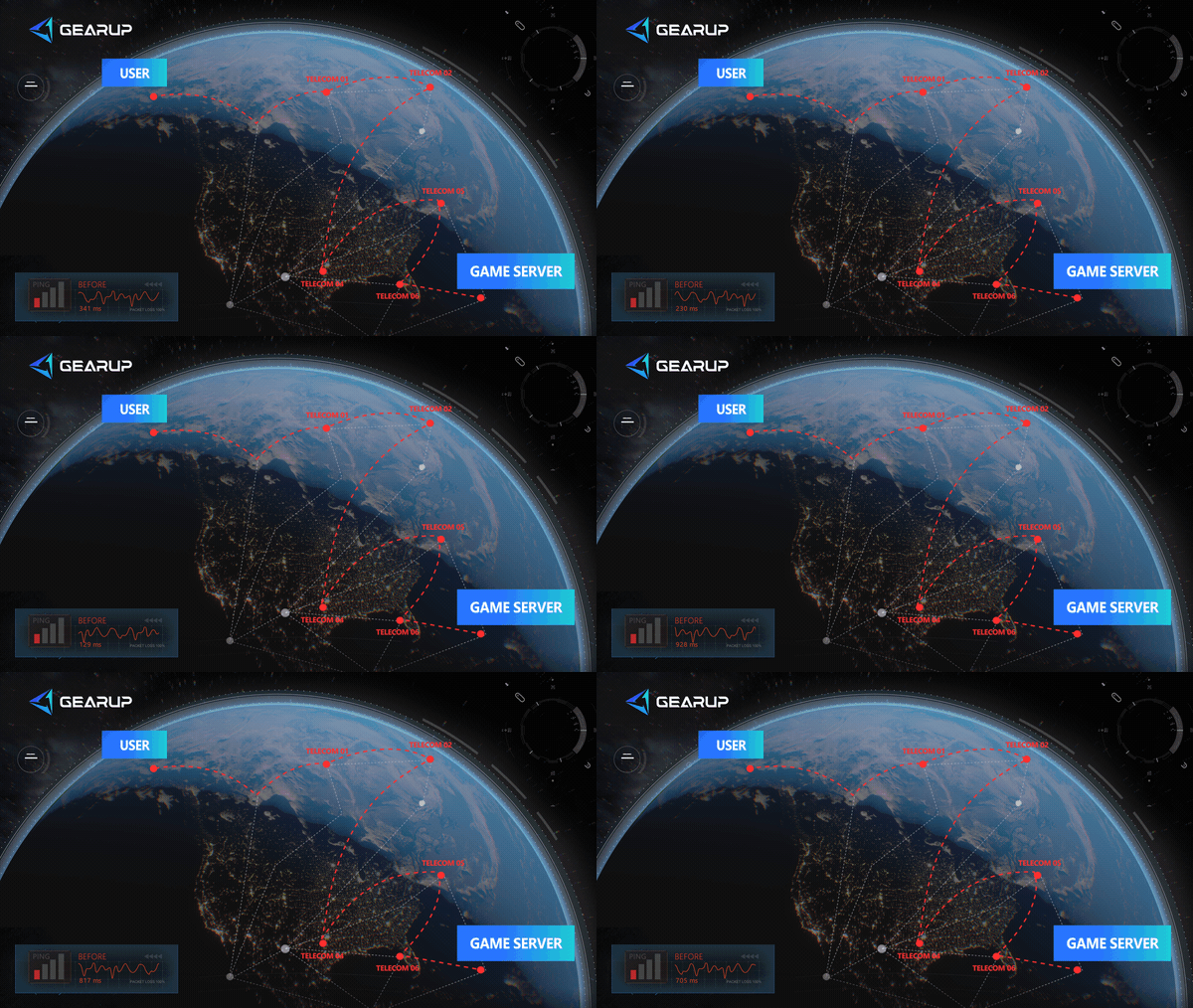
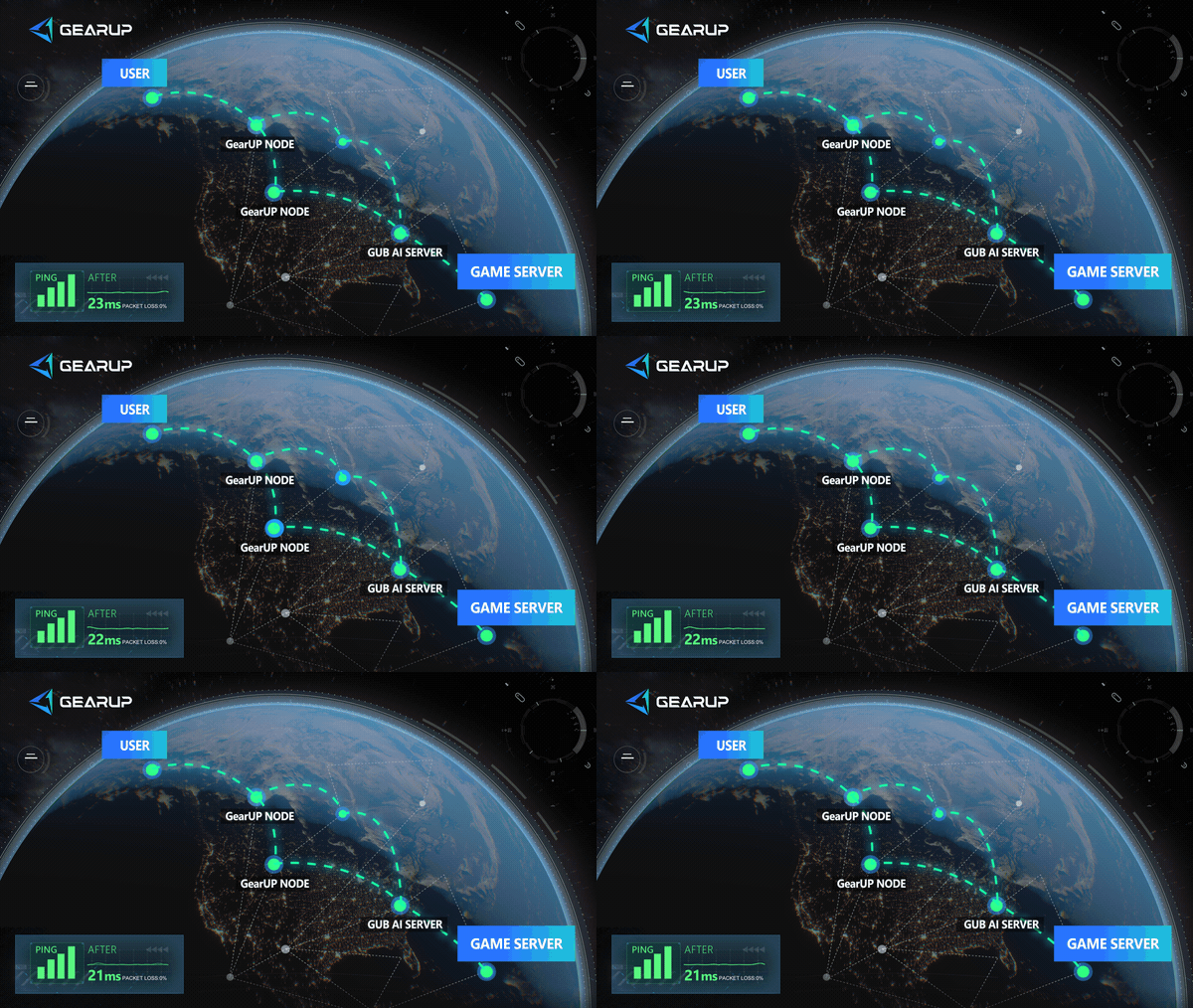
Getting into the game does not necessarily mean the problem is solved. Because you may be connecting to servers across regions, you could experience severe latency or even connection failures. GearUP Mobile can help with these issues as well. Thanks to its intelligent multi-route switching technology, you can enjoy a more stable connection without changing any network settings.
Is the Login Problem Related to the APK?
Not necessarily.
If the game cannot be installed at all, the problem is more likely related to the APK file, device compatibility, or installation permissions. If the game starts but shows a region, eligibility, or server error during login, the issue may be related to the game’s release rules.
In regions such as Taiwan, Iran, Vietnam, Cuba, Brazil, Russia, and Belgium, installing the APK does not guarantee that you can register or access the game. An APK only provides the installation package. It does not mean that the game offers full access in your region.
If you cannot log in, check the following:
- Whether the current test is available in your region
- Whether your account requires registration or test access
- Whether the game requires a specific login method
- Whether the game servers are under maintenance
- Whether your installation package is up to date
About The Author
Olivia Clarke is a Mobile Gaming Content Editor at GearUP, focusing on competitive mobile games and the networking challenges that affect online gameplay. She specializes in creating practical, easy-to-follow content for titles like PUBG Mobile and Brawl Stars, helping players understand the causes of lag, unstable connections, and high latency. By combining real gameplay scenarios with straightforward networking advice, Olivia makes technical topics more accessible to mobile gamers.
The End