How to Fix PUBG Server Connection Failed
 Last updated: 8 Jul, 2026
  5 min
5 minPUBG: Battlegrounds is an online battle royale game by KRAFTON that requires a constant connection to its servers for matchmaking, inventory sync, and anti-cheat verification. There's no offline mode, so staying connected throughout the entire match is essential. However, many players run into server connection failures, sudden disconnections, and severe lag. This guide will explain why these issues occur and provide practical, workable solutions, including the GearUP plugin.
What Is Preventing You From Connecting to PUBG Servers?
When you can’t connect to the servers, people often first check whether the PUBG servers are down or undergoing maintenance. In reality, however, that’s unlikely, especially since scheduled maintenance is typically announced in advance or notified in-game. So we should instead focus our attention on other issues:
- ISP routing issues — Your provider may route traffic through congested or inefficient paths to PUBG's servers, causing timeouts.
- DNS resolution problems — Incorrect DNS settings can prevent your device from resolving PUBG's server addresses.
- Network congestion — Peak gaming hours can overload local networks or ISP nodes, leading to packet loss and failed handshakes.
- Geographic distance — Connecting to a server far from your region increases latency and the chance of disconnection.
How to Fix PUBG Server Connection Failed
Some Basic Checks
However, a low probability does not mean it won't happen. Before attempting other fixes, we should first confirm some basic issues. You can verify through official PUBG social media announcements, Steam maintenance notices, or community outage trackers. If servers are under maintenance, the only option is to wait until services are restored.
In addition, make sure that nothing is restricting PUBG's network access, and check your firewall and system settings:
- Open Windows Security → Firewall & network protection.
- Click "Allow an app through firewall."
- Look for PUBG (TslGame.exe) in the list.
- If it's missing, click "Allow another app," browse to PUBG's install folder, and add TslGame.exe.
- Make sure both Private and Public boxes are checked.
- Click OK and restart the game.
GearUP Helps Your PUBG Connection
For players who frequently get disconnected from PUBG, GearUP offers a smarter fix than restarting your router. It optimizes the network path between your device and game servers, reducing PUBG latency, packet loss, and unstable routing. It also lets you switch and lock server regions, which is especially useful for playing with international friends or finding more stable matchmaking.
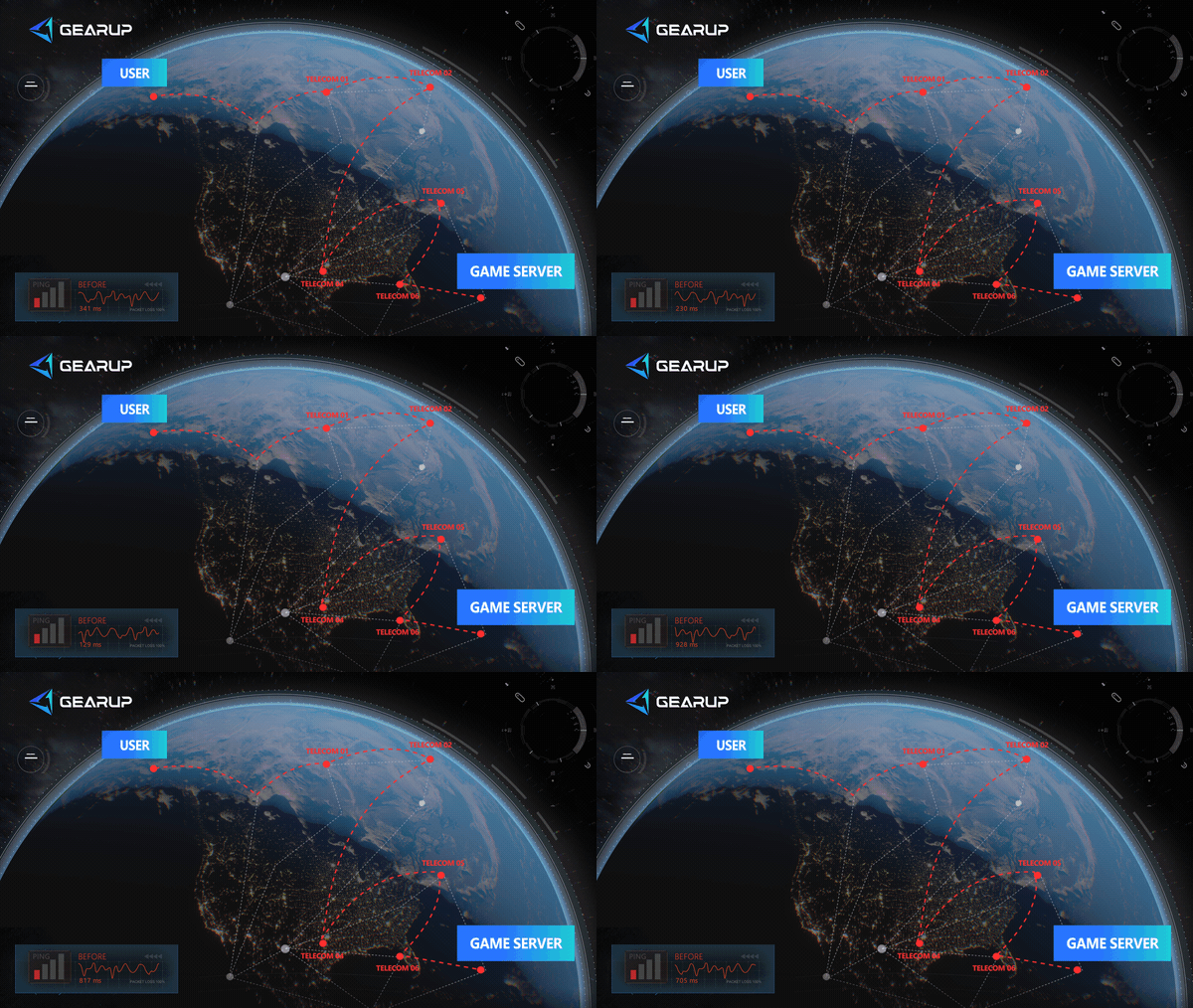
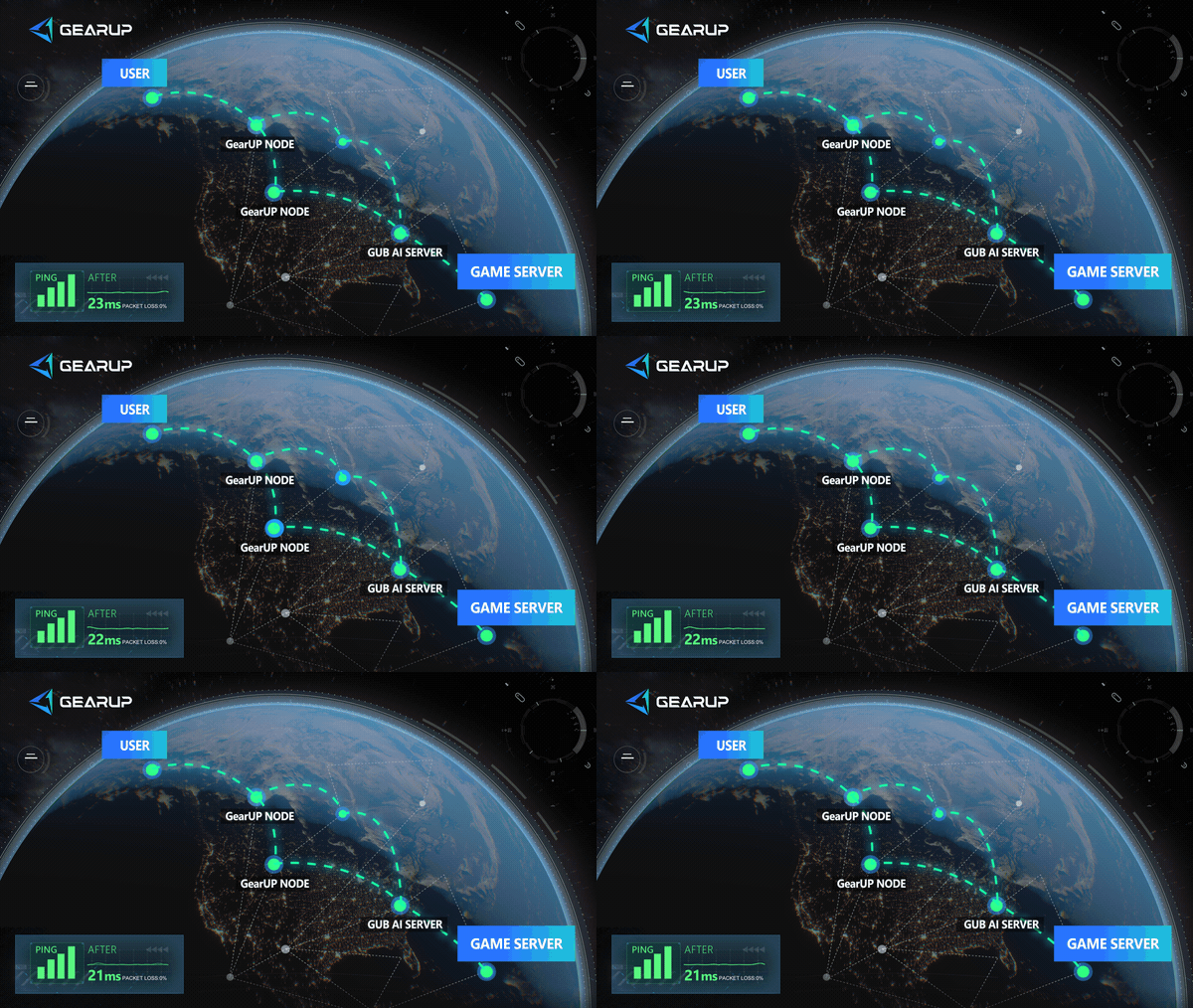

At the same time, GearUP is also an official PUBG partner and has received praise from many players, which is, of course, related to how easy it is to use:
- Search for PUBG.
- Select a server.
- Click Start Boost, then launch the game. GearUP will provide real-time network status, so you only need to focus on the match.
- ASUS partner router user guide
- ZTE partner router user guide
- OpenWrt router installation guide
- Steam Hardware Plugin Installation Guide
Use a Wired Connection and Close Bandwidth-Heavy Background Apps
A wired Ethernet connection is far more stable than Wi-Fi for online games. If you must use Wi-Fi, stay close to your router and avoid crowded networks.
Additionally, background apps like streaming services, large downloads, or cloud syncing tools can eat up bandwidth and cause connection drops. Before launching PUBG, close unnecessary apps through Task Manager (Ctrl + Shift + Esc) to free up your network.
Verify PUBG Game Files on Steam
Corrupted or missing game files can prevent PUBG from connecting to servers properly. To check and repair them:
- Open Steam and go to your Library.
- Right-click PUBG: Battlegrounds → Properties.
- Go to Installed Files → Verify integrity of game files.
- Wait for the process to complete. Steam will automatically re-download any damaged or missing files.
- Relaunch the game and test the connection.
PUBG Server Regions
In addition to the solutions above, we strongly recommend connecting to a server that is physically closer to you, because increased physical distance has a major impact on connection stability—resulting not only in higher latency but also in possible disconnections or other anomalies. You can refer to the following PUBG server distribution to choose the one that suits you:
| Region | Major Countries / Areas |
|---|---|
| North America | United States, Canada, Mexico |
| South America | Brazil, Argentina, Chile |
| Europe | United Kingdom, Germany, France, Spain, Italy |
| Asia | South Korea, Japan, China, Singapore, Thailand |
| Southeast Asia | Singapore, Malaysia, Indonesia, Philippines |
| Oceania | Australia, New Zealand |
| Russia / CIS | Russia and neighboring CIS countries |
PUBG Server Connection FAQ
Q1: Why does my PUBG connection suddenly drop?
A: If it is not a server outage or your local network disconnecting, the problem is with your network path. Node failures or sudden network congestion can cause this issue.
Q2: Can a VPN solve connection problems?
A: Not really. A VPN can actually increase PUBG's latency and may even be blocked from connecting.
Q3: Is using GearUP safe for PUBG?
A: Yes. GearUP is a network optimization tool that improves routing between your device and the game server. It does not modify game files or provide gameplay advantages.
Q4: How should I choose a PUBG server?
A: Ensure the server has a sufficient number of players and, whenever possible, choose the one that is physically closest to you.
Conclusion
PUBG server connection errors are not as difficult to resolve as you might imagine, even though they can be caused by complex factors. Check your local network, then use GearUP to optimize routing nodes, this will resolve most issues in most cases. As for server outages, those are rare and the problems you encounter are probably unrelated. Try following the steps in this article now.
About The Author
Lucas Harrison is GearUP’s PC game expert and a veteran media professional with many years of experience. He is well versed in the various network issues that affect PC games and has extensive insights into solving them, having proposed numerous suggestions for optimizing GearUP’s PC version. He currently serves as GearUP’s Content Creation Lead, primarily responsible for writing GearUP’s PC network optimization guides, which aim to help players understand the problems they’re facing and provide practical, effective solutions through clear, easy-to-follow guidance.
The End