How to Fix Aniimo Lag | PC, Console, Mobile
 Last updated: 23 Sep, 2026
  6 min
6 minAniimo is available across PC, console, and mobile, which makes latency issues less straightforward than they first appear. A delayed skill in co-op may come from the network, while choppy movement on a hot phone may be a device-performance issue. Wi-Fi interference, background traffic, cross-region play, and game-side problems can all create an experience players call “lag.”
As a result, many players try the wrong fix first. They lower graphics for high ping, change DNS for an unstable cross-region route, or blame their home Wi-Fi when a wider server issue is affecting multiplayer. The right solution starts with recognizing what the delay looks like in Aniimo.
Start with what is actually happening in the game.
| What Happens in Aniimo | More Likely Cause | What to Check First |
|---|---|---|
| Skills, pickups, or interactions respond late; teammates jump position | High ping, jitter, or packet loss | Local network and server route |
| Solo exploration is choppy; FPS drops but positions stay in sync | Device performance | Heat, graphics settings, background apps |
| Aniimo lags on Wi-Fi but works normally on mobile data | Home wireless network | Signal, router, household traffic |
| Local play is fine; lag starts with distant friends or a specific server | Cross-region latency | Server distance and network route |
| Many players lag, cannot matchmake, or disconnect after an update | Server-side or game-update issue | Official announcements and server status |
Delayed Skills and Jumping Teammates Point to Network Latency
Network latency affects real-time synchronization between you and the server.
During co-op exploration, combat, or Operation: Egg Heist, the server must continuously synchronize player positions, Aniimo states, interactable objects, and combat results. When latency rises, the first sign is not always lower frame rate. More often, your actions and the server response stop lining up.
For example, you use a skill but it activates a moment later. A teammate appears ahead of you, then suddenly jumps somewhere else. A pickup or interaction may need several attempts before it registers. These are more likely signs of high ping, jitter, or brief packet loss than weak device performance.
If these problems happen only in multiplayer, especially when playing with friends far away, check the connection before lowering graphics settings.
Solo Frame Drops and a Hot Phone Are Not Network Problems
If Aniimo already feels choppy during solo exploration, camera movement is not smooth, or animations become uneven while online positions remain stable, the issue is more likely your device than your connection.
This is especially common on mobile. Long play sessions, playing while charging, high room temperatures, or several apps running in the background can cause thermal throttling. Aniimo can then lose frame rate and feel less responsive even when the network is stable.
Try these changes first:
- Close background apps and screen-recording features.
- Avoid long sessions while charging.
- Let the device cool down before entering multiplayer activities.
- Lower graphics, shadows, or frame-rate settings.
- Keep enough free storage space on the device.
PC players should also check downloads, browser tabs, recording software, and GPU load. Console players can confirm that game and system updates are complete. These factors affect visual smoothness, but they do not directly change your ping to Aniimo servers.
If Wi-Fi Lags but Mobile Data Works, Look at Your Home Network
Mobile players do not need to start with complicated network settings. Test the same multiplayer activity once on home Wi-Fi and once on mobile data.
Mobile data is not guaranteed to have lower ping. It provides a different network environment for comparison.
If Aniimo has delayed actions, jumping teammates, or failed synchronization on Wi-Fi but becomes stable on mobile data, focus on the home connection:
- The router is too far away or separated by several walls.
- Nearby wireless signals cause interference.
- Someone on the same Wi-Fi is streaming, downloading games, or syncing files.
- Cloud photo backups, video uploads, or video calls are consuming upload bandwidth.
PC and console players can use the same logic. If you normally play on Wi-Fi, complete one full multiplayer session through Ethernet. If latency spikes drop noticeably, the wireless environment is more likely the problem than the Aniimo client.
Why Does Aniimo Lag When Your Broadband Is Fast??
Download speed and game latency are not the same measurement.
Speed tests usually measure performance to a nearby test server. Aniimo’s real-time traffic travels from your network through ISP nodes, regional networks, and sometimes international routes before it reaches the game server. Congestion, detours, or unstable handoffs anywhere along that path can delay skill responses and make players jump position.
That is why a faster broadband plan does not automatically lower Aniimo latency. The game does not need huge amounts of download bandwidth. What matters is whether data can travel back and forth consistently and on time.
Changing DNS is not a universal answer either. DNS helps locate service addresses, so it can help when login or address resolution fails. Once you are already in Aniimo, DNS normally cannot change the route used by live game traffic or directly fix high ping in co-op.
Network Routing Is the Key to Online Mode
Some players like to play across regions. In those cases, a local network that appears normal can begin to show problems, but this is not actually a local fault. It is caused by traffic interference and routing obstacles encountered during cross-region data transmission. It is no exaggeration to say that most games will experience this.
Aniimo's issue is that it has relatively few servers, so it is more likely to suffer from latency or even connection failures. In such cases, GearUP can be used as a route optimization solution. It optimizes transmission paths for Aniimo game traffic, reducing the impact of congested nodes and unstable handoffs on cross-region play.
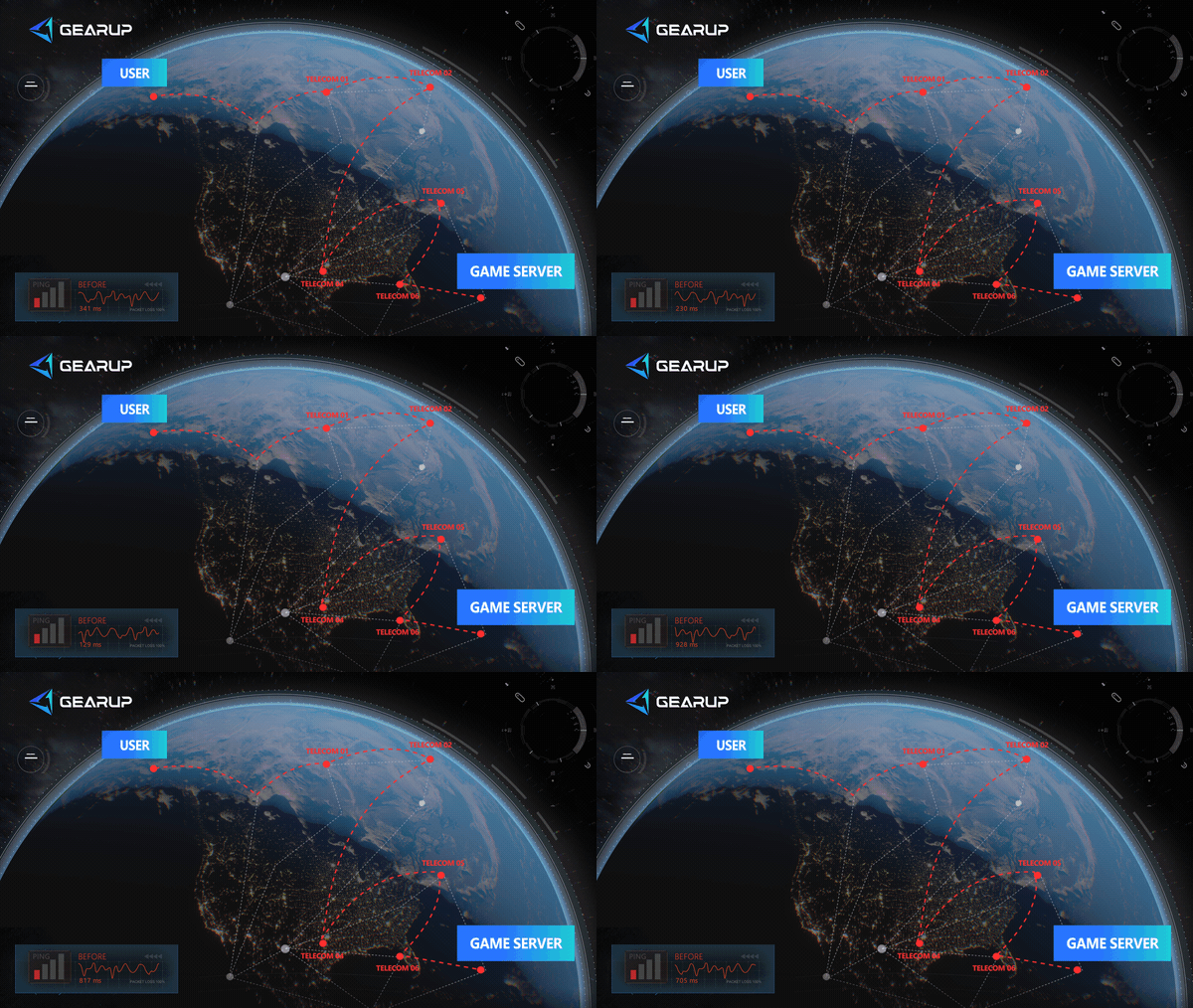
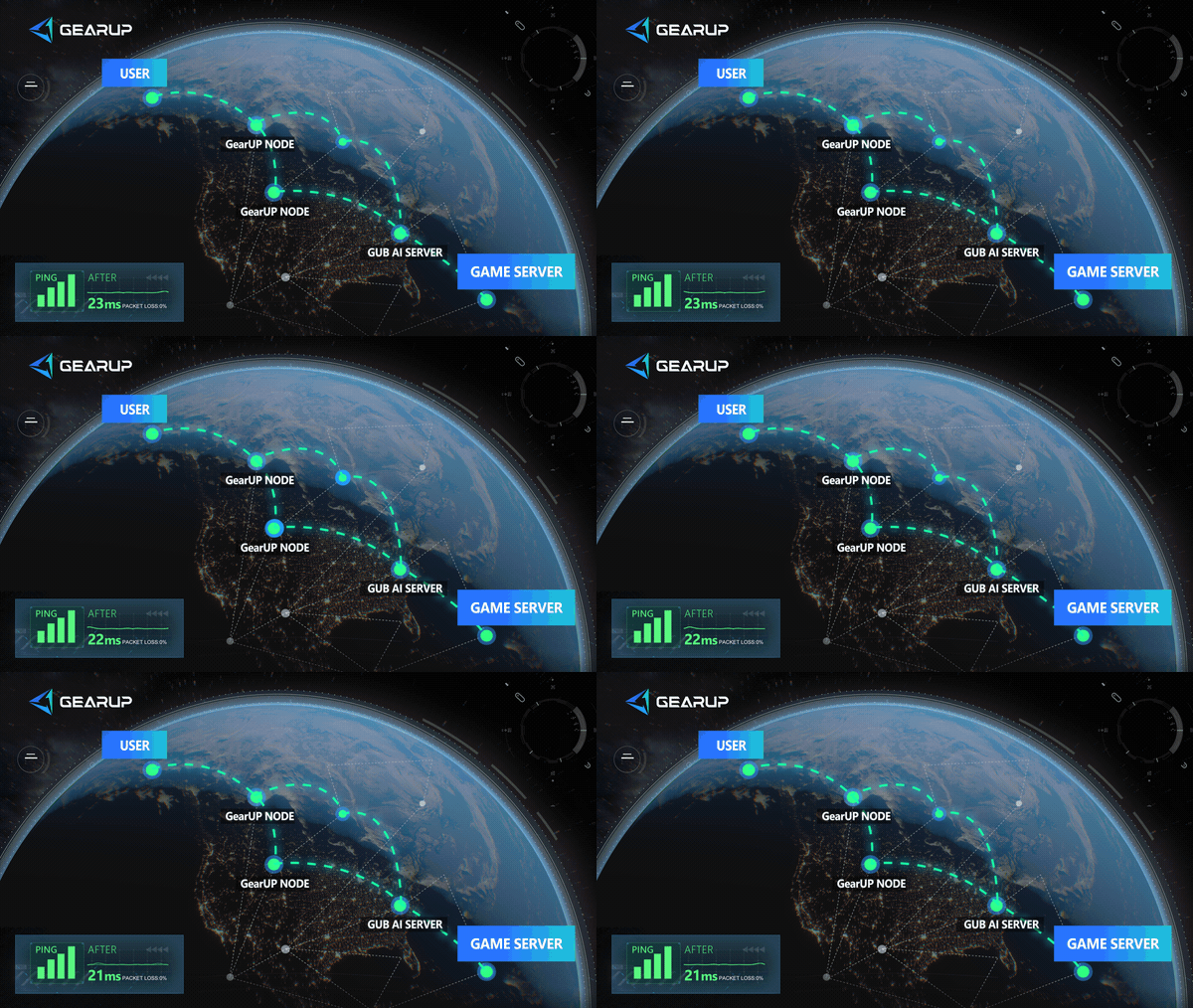
Its advantage is full platform compatibility. Whether PC, console, or mobile, it provides corresponding solutions.
GearUP PC client:

GearUP plugin (for all platforms):
- ASUS partner router user guide
- ZTE partner router user guide
- Tenda partner router user guide
- OpenWrt router installation guide
- Keenetic/Netcraze router installation guide
- Steam Hardware Plugin Installation Guide
GearUP Mobile:
If Problems Start After an Update, Check Whether Everyone Is Affected
Aniimo updates, events, and multiplayer adjustments can affect login, matchmaking, and online stability.
If performance suddenly becomes worse after an update or event begins, first look at the scope of the issue. Check official announcements, maintenance notices, and known-issue updates when friends on different networks cannot log in at the same time, a multiplayer mode has widespread matchmaking failures, or many players report disconnects.
If the problem only affects you on one network, in one server region, or during a specific cross-region party, then return to the device, local network, and route checks above.
Do not start by changing DNS, reinstalling Aniimo, or upgrading broadband. Delayed actions and jumping positions point to the connection. Solo frame drops and a hot phone point to device performance. Different Wi-Fi and mobile-data results point to the home network. If only cross-region parties remain unstable, GearUP can optimize the route to the game server.
About The Author
Olivia Clarke is a Mobile Gaming Content Editor at GearUP, focusing on competitive mobile games and the networking challenges that affect online gameplay. She specializes in creating practical, easy-to-follow content for titles like PUBG Mobile and Brawl Stars, helping players understand the causes of lag, unstable connections, and high latency. By combining real gameplay scenarios with straightforward networking advice, Olivia makes technical topics more accessible to mobile gamers.
The End