Game Optimization,
Built for OpenWrt Routers

Install the GearUP Plugin on your router with a single command. Nothing to add on your PC or console, just lower game latency and a steadier connection.

Boost Games On
  • PlayStation
  • Xbox
  • Nintendo Switch
  • Steam Deck
  • Steam
  • Windows PC
  • Mobile
root@OpenWrt:~ (GearUP daemon)
SSH :22
root@OpenWrt:~#
[+] Architecture detected: x86_64 / arm64 [OK]
[+] TUN interface: /dev/net/tun [READY]
[+] Daemon registered: /etc/init.d/gearup (running)
[✓] GearUP ready: sn=GU8829F01A4B
OpenWrt Router
GearUP Node
GearUP Node
ISP Node
ISP Node
Game Server
Native route: 186 ms · long detour

Three Steps from Shell to Boosted

Get SSH access, verify TUN module support, and run the one-line installer. Copy the commands below and start right away!

Step 01

Connect to the Router over SSH

Connect a computer to the router's network (cable or Wi-Fi), open a terminal and log in to the router. The default gateway is normally 192.168.1.1.

Windows

Press Win + R, type cmd, then connect to the gateway:

Changed the gateway? Run ipconfig in cmd and read the Default Gateway address.

macOS / Linux

Open Terminal and connect the same way:

Key check

On the first connection you may see a (yes/no) prompt. Type yes, then enter your OpenWrt password and press Enter.
Step 02

Check the TUN Kernel Module

GearUP diverts game traffic through a user-space TUN interface, which this kernel module provides. Paste the self-check first:

opkg list-installed kmod-tun
State A · module present

Run the command below and press Enter. If it returns /dev/net/tun, the module is ready:

ls /dev/net/tun

Nothing to install. Continue with step 03.

State B · module missing

No TUN module in this firmware. Run this to add it from the feed:

opkg update && opkg install kmod-tun

If the feed errors, the firmware trims its kernel packages. Flash an official stable image instead.

Step 03

Run the Installer and Wait for sn=

Pick any one of the commands below, paste it into the SSH session and press Enter. The script detects the CPU architecture, then installs the plugin and enables autostart in seconds.

curl https://sdp.gg/op | sh
wget -qO- https://sdp.gg/op | sh
wget -qO- http://get.sdp.gg/op | sh
Key check

The install succeeded when the output ends with a serial number such as sn=GU8829F01A4B.

Control from the GearUP Router App

A clean, intuitive interface. Bind the router once and start boosting any time you want to play.

Step 01
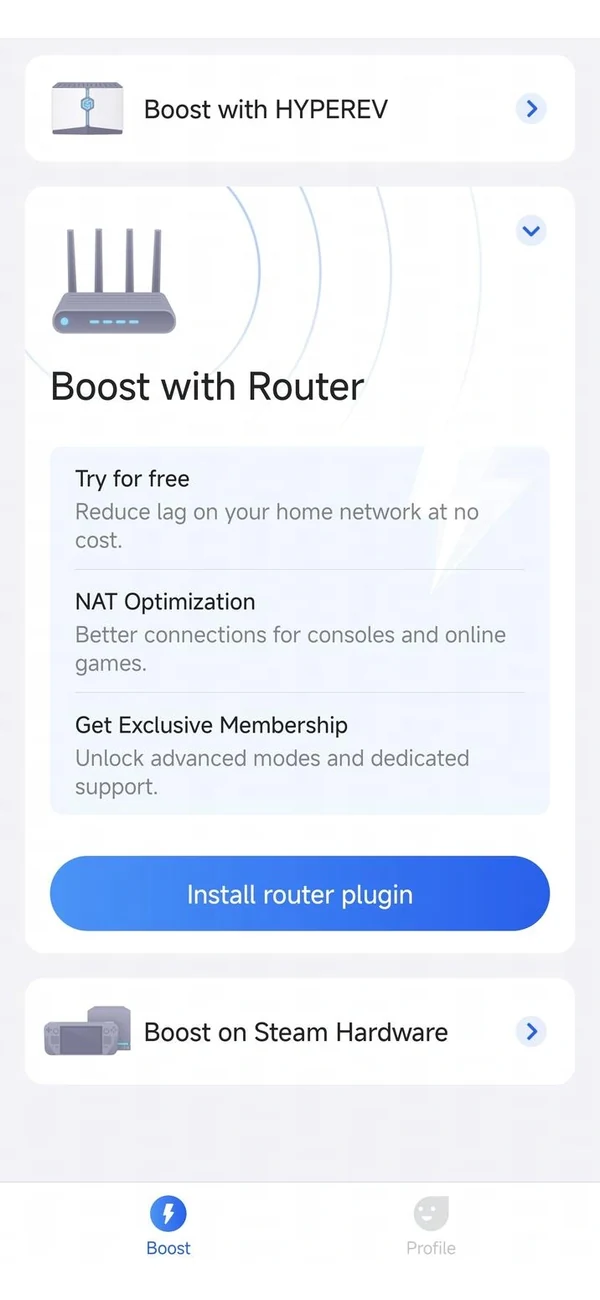
Open Boost
In the GearUP Router app, select Install router plugin.
GearUP app Boost tab with the Install router plugin button
Step 02
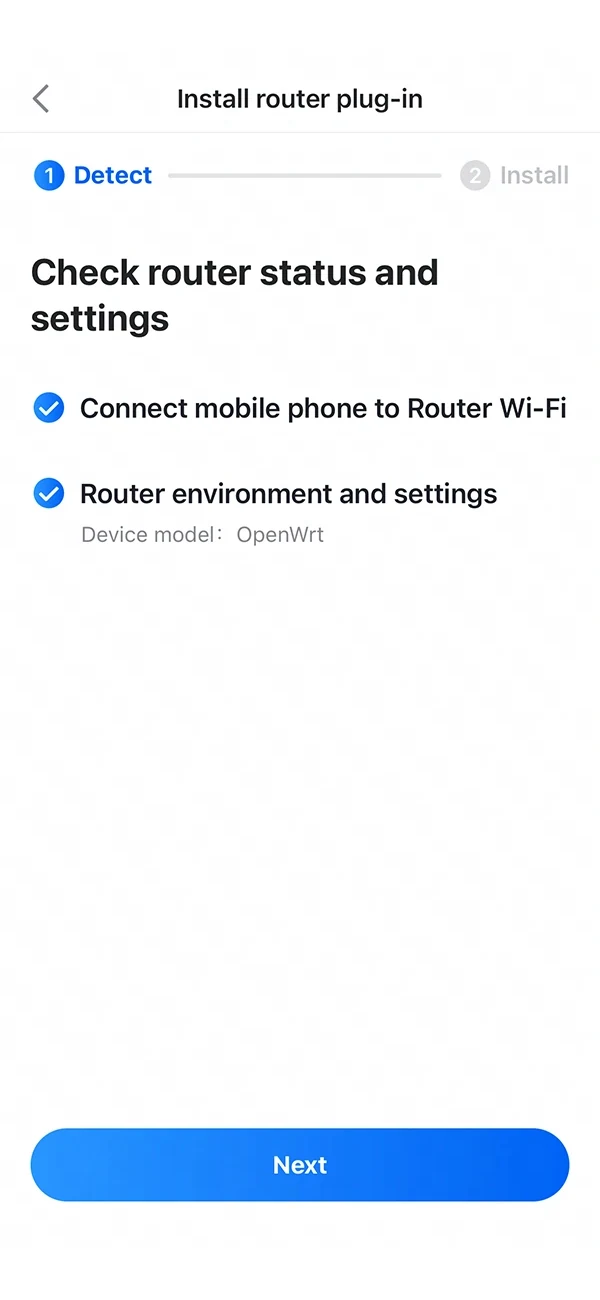
Let It Detect the Router
The app checks that your phone is on the router's Wi-Fi and reads the router environment.
GearUP app detecting the router: phone on router Wi-Fi, device model OpenWrt
Step 03
Router Bound
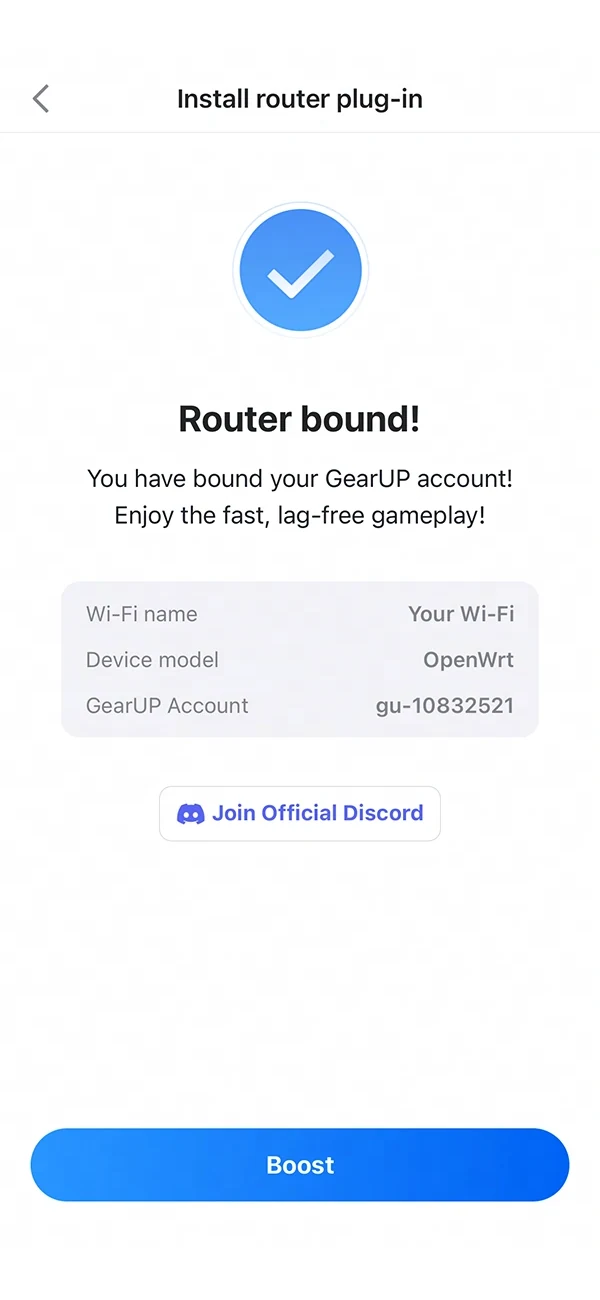
Follow the instructions to bind GearUP to your router, then tap Boost.
GearUP app confirming the router is bound to the account
Step 04
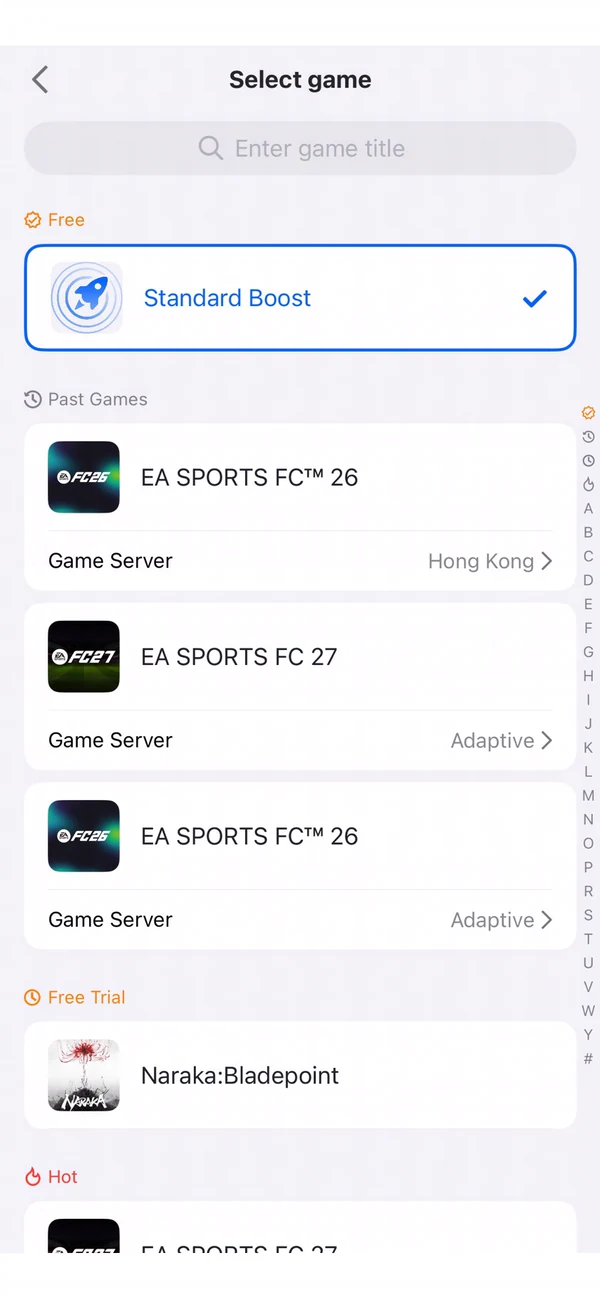
Pick Your Game
Select your game and region. GearUP dynamically routes your traffic through the lowest-latency nodes.
GearUP app game list with Standard Boost selected and the server region

High-Performance Game Routing

A breakthrough in lightweight design that makes fixing game connectivity effortless for every player.

Runs Inside Your Router

The plugin runs inside the router in the background, takes over game traffic precisely, and connects to public routing nodes based on real-time network conditions.

  • Less than 5 MB, no performance impact
  • Other devices and apps stay unaffected
  • Safe and stable, router settings untouched

AIR Adaptive Routing

GearUP's proprietary technology, deployed across more than 7,500 nodes worldwide, with a dynamic algorithm that keeps the assignment optimal.

  • Multi-path switching across global servers
  • Region server locking
  • New nodes added continuously

Per-Game Routing Plans

Traffic is not treated in one uniform way. Each game is tuned separately, based on where its servers sit and how the game connects.

  • PC, console and mobile all supported
  • Real-world network testing
  • New games added quickly

Supporting 3,000+ global titles

Unbind It in the App

No command to run, no cleanup afterwards. Unbinding the router in the GearUP Router App is the whole uninstall.

01Open the GearUP Router App and pick your bound router.
02Tap Unbind. The plugin is removed from the router.

Nothing stays behind on the device: no files, no leftover configuration and no packages to clean up.

Questions from OpenWrt Users

No. Install the plugin over SSH and bind the router in the GearUP Router App. That is the whole setup, and nothing in your router configuration has to be adjusted.
It depends on how your VPN is set up. In most cases we recommend turning the VPN off while you play with GearUP active, so that the VPN's proxy does not interfere with the traffic GearUP carries.
In our testing the plugin already works with the large majority of OpenWrt releases. Update to the latest version for your device to avoid installation failures, and send us feedback from the app if anything goes wrong.
When you are not using GearUP to optimize your connection, it is already off. And whether it is on or off, GearUP does not affect the network connection or usage of any hardware or software beyond the game it is targeting.
Work through the deployment steps above and check three things: the router address you connect to, the TUN kernel module, and the commands themselves. Use the Copy buttons instead of typing them, so nothing is mistyped.

Ready to Run GearUP on Your Own Router

One command. The app handles the rest.

Download GearUP App

Using other routers? Find the GearUP Plugin across every supported model