RUST Mobile Server Connection Failed: Check Service Access, Version, and Network Route First
 Last updated: 2 Sep, 2026
  5 min
5 minWhen RUST Mobile shows a “server connection failed” message, do not immediately reinstall the game or keep restarting your router. The same message can appear for different reasons: a temporary service issue, unavailable regional access, an outdated client, or an unstable route between your phone and the game server.
RUST Mobile is still going through regional testing and frequent updates. Identifying which layer is causing the failure is more useful than changing your DNS, Wi-Fi, and app settings all at once.
First, Check Whether You Can Access the Game From Your Region
If you could log in yesterday but now get stuck on the login or server connection screen, check RUST Mobile’s official announcements first. Look for maintenance, test changes, version updates, or adjustments to regional availability.
RUST Mobile service and test eligibility can vary by region. If your location is not included in the current test or service area, a connection failure may not be caused by your phone, Wi-Fi, or a server outage. Changing DNS settings or restarting your router will not automatically give you regional access.
Then check your game version. Test clients can update frequently, and an older build may be unable to connect after the server moves to a newer version.
Check these two things:
- Whether a newer version is available through your app store or download source.
- Whether your phone has enough free storage for the update and additional game resources.
If there is no reported service issue, your region is eligible, and the game is fully updated, move on to the network test.
Switch Networks Once to Narrow Down the Cause
The most useful test is switching between Wi-Fi and mobile data.
If you usually play on home Wi-Fi, turn Wi-Fi off and launch RUST Mobile with mobile data. If you usually use mobile data, try a stable Wi-Fi connection instead.
The result can reveal a lot:
| Test result | What to check first |
|---|---|
| Neither network can log in | Official service status, regional eligibility, account, or game version |
| Mobile data works but Wi-Fi fails | Router, Wi-Fi, ISP, or network route |
| Wi-Fi works but mobile data fails | Mobile network restrictions, signal quality, or carrier route |
| Both can log in, but the game disconnects often | Latency, packet loss, congestion, or unstable routing |
This tells you far more than repeatedly pressing reconnect. Websites may load, videos may stream, and speed tests may look normal while the route to the RUST Mobile server remains unstable. Video can buffer; an online survival game must continuously synchronize character actions, combat, and world data.
If Wi-Fi Cannot Connect, Check These in Order
If mobile data can enter the game but home Wi-Fi cannot, the game service is probably not completely unavailable. Focus on the local network before reinstalling the client.
Restart the router first. Turn it off, wait briefly, then restart it. Once the connection has fully returned, launch the game again. This can rule out temporary network assignment or router-state problems.
If restarting changes nothing, check for obvious bandwidth-heavy activity at home:
- Another device is downloading a large game or system update.
- A cloud service is syncing photos or files.
- Someone is streaming high-bitrate video or a live broadcast.
- Your phone is updating apps in the background.
Pause those tasks and test again. If the connection improves, the issue is more likely local network congestion.
Also pay attention to timing. If RUST Mobile works in the morning but login failures or disconnections become more common every evening, the cause may be peak-hour congestion in your home network or your ISP’s upstream network, not sudden device incompatibility.
You Can Enter the Game, but Characters Rubber-Band or Disconnect
If you can log in and load into the world, regional eligibility and client version are no longer the main focus. Connection quality is.
In RUST Mobile, being pulled back after moving, delayed gathering or combat actions, temporary freezes followed by disconnection, and similar symptoms are more likely related to high latency, packet loss, or network jitter. These issues can become more noticeable around resource areas, combat, or multiplayer activity, where unstable connections are more likely to cause a disconnect.
Compare Wi-Fi and mobile data again:
- Only Wi-Fi disconnects: Check the router, wireless signal, home network load, and connection route.
- Only mobile data disconnects: Check coverage, data restrictions, and mobile-network performance during busy hours.
- Both networks can enter but disconnect in similar situations: Check official channels for server issues or known test-period problems.
If the problem stays on one network after you have ruled out version, regional access, and local congestion, the remaining cause may be the actual path from that network to the RUST Mobile server.
This is where GearUP can be useful as an additional route test. It optimizes the connection path for supported games, focusing on reducing unnecessary detours, latency, and packet-loss risk rather than increasing your internet plan speed.
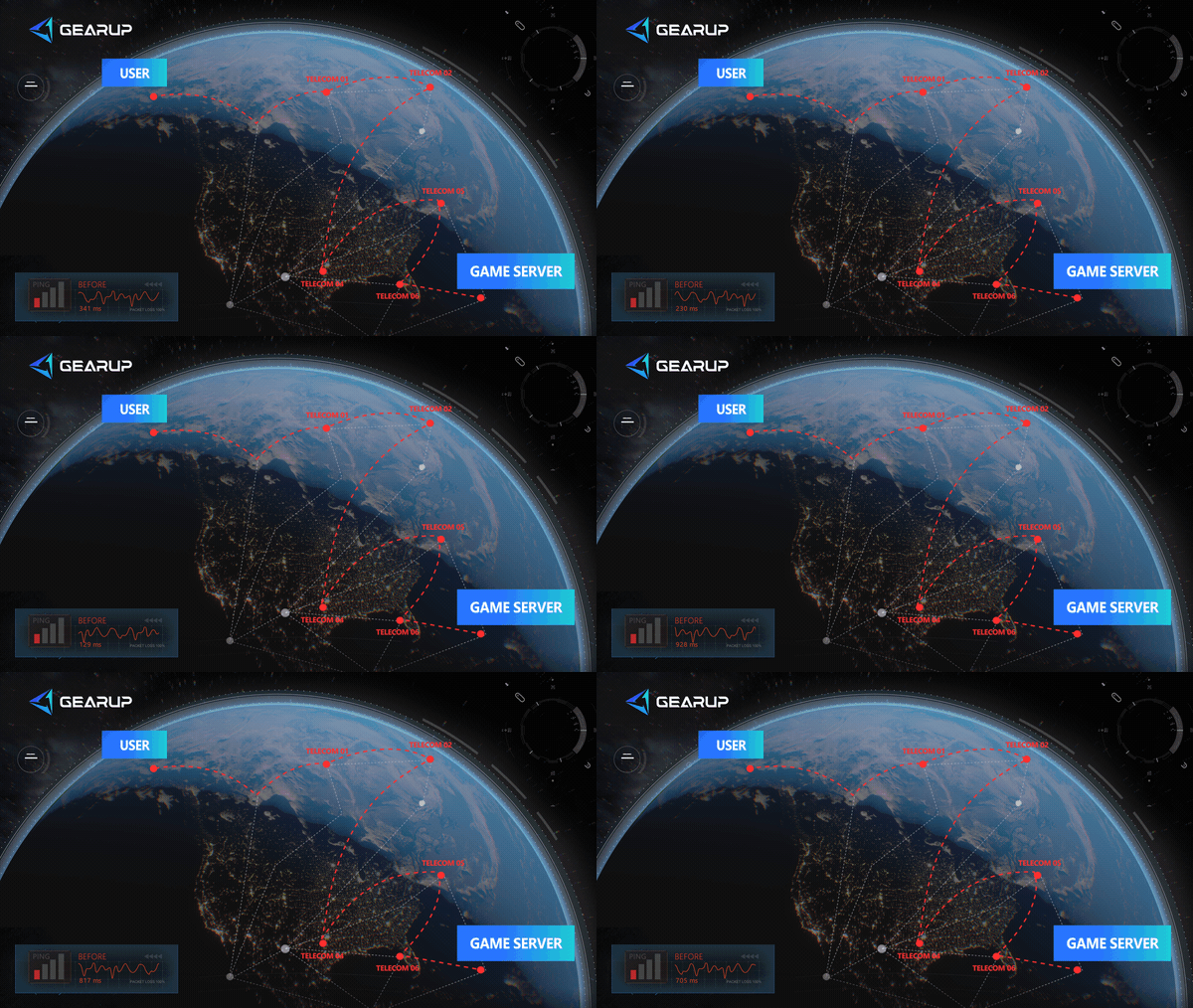
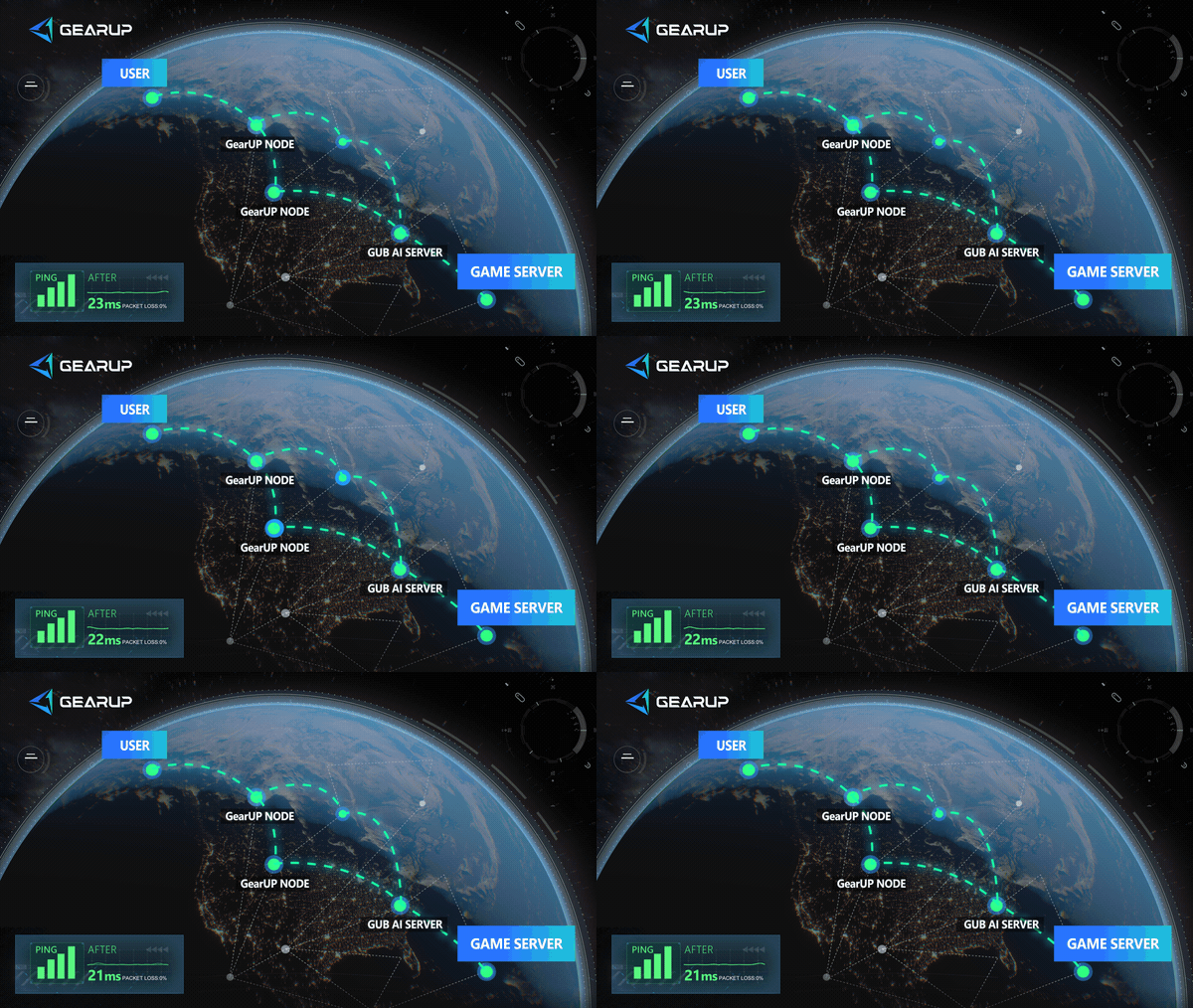
GearUP cannot repair a server under maintenance or bypass regional eligibility, account restrictions, or an outdated client. But if mobile data works while home Wi-Fi repeatedly fails, or if the game disconnects mainly at certain times, testing another game connection route makes more sense.
Do Not Treat These as the Same Problem
- You cannot get past login or the connection screen. Check official status, regional eligibility, and the game version first.
- One network works while another does not. Check the failing network first, including its router, Wi-Fi, ISP, and route.
- You can enter the game but rubber-band, lag, or disconnect. Focus on latency, packet loss, network load, and route stability.
- No network works, at any time, and other players report the same issue. A server-side or test-environment problem is more likely. Waiting for an official fix is more useful than changing local settings.
Avoid changing DNS, VPN settings, router settings, and game files at the same time. Test one variable at a time so you can identify what actually changes the result.
About The Author
Olivia Clarke is a Mobile Gaming Content Editor at GearUP, focusing on competitive mobile games and the networking challenges that affect online gameplay. She specializes in creating practical, easy-to-follow content for titles like PUBG Mobile and Brawl Stars, helping players understand the causes of lag, unstable connections, and high latency. By combining real gameplay scenarios with straightforward networking advice, Olivia makes technical topics more accessible to mobile gamers.
The End