How to Fix Diablo II Lag (2026 Version)
 Last updated: 29 May, 2026
  5 min
5 minFew action RPGs are as iconic as Diablo II. Decades after release, Diablo II: Resurrected still draws a massive player base, with Blizzard actively supporting it through seasonal ladder resets, balance patches, and new content. Most players spend their time in online ladder matches, co-op farming, trading, or PvP, making stable network performance essential.
Lag in Diablo II is surprisingly common, ranging from constant ping spikes during peak hours to random stutters in crowded battles. The good news is that most lag issues can be improved with the right fixes. This guide covers the different types of lag, their causes, and how to reduce them.
Two Types of Lag in Diablo II
Not all lag in Diablo II comes from the same source. Understanding the distinction helps you target the right fix.
Network lag occurs when your connection to Blizzard's servers is unstable or delayed. The game may look fine visually, but your actions reach the server late, resulting in delayed skill casts, rubberbanding, and occasional disconnects. Typical causes are:
- Server distance increasing data travel time
- Inefficient ISP routing through congested nodes
- WiFi interference from walls, devices, or other signals
- Peak-hour congestion when local network traffic is heaviest
Performance lag happens on your own PC rather than through the network. When your hardware struggles, the game slows down regardless of your connection quality, showing up as low FPS, screen freezes, and crashes after updates. Typical causes are:
- Outdated graphics drivers conflicting with recent patches
- High graphics settings stressing older GPUs
- Background applications consuming RAM and CPU resources
For most online players, network lag is the primary issue. Since Diablo II's core experience revolves around ladder seasons, co-op farming, trading, and PvP, nearly everything runs through Blizzard's servers. Even a powerful PC can't compensate for a poor connection, which is why addressing network stability should be the first priority.
How to Reduce Diablo II Network Latency?
Use GearUP to Optimize the Network
GearUP offers an ultra-simplified network optimization solution designed so every player can reduce latency with one click without any network setup. It supports connecting to Diablo II servers worldwide and, through precise traffic identification and node allocation, achieves optimal connection performance. From a player’s perspective, your data is like finding a shortcut for transmission: connection stability improves, latency drops, and the online experience is significantly better.
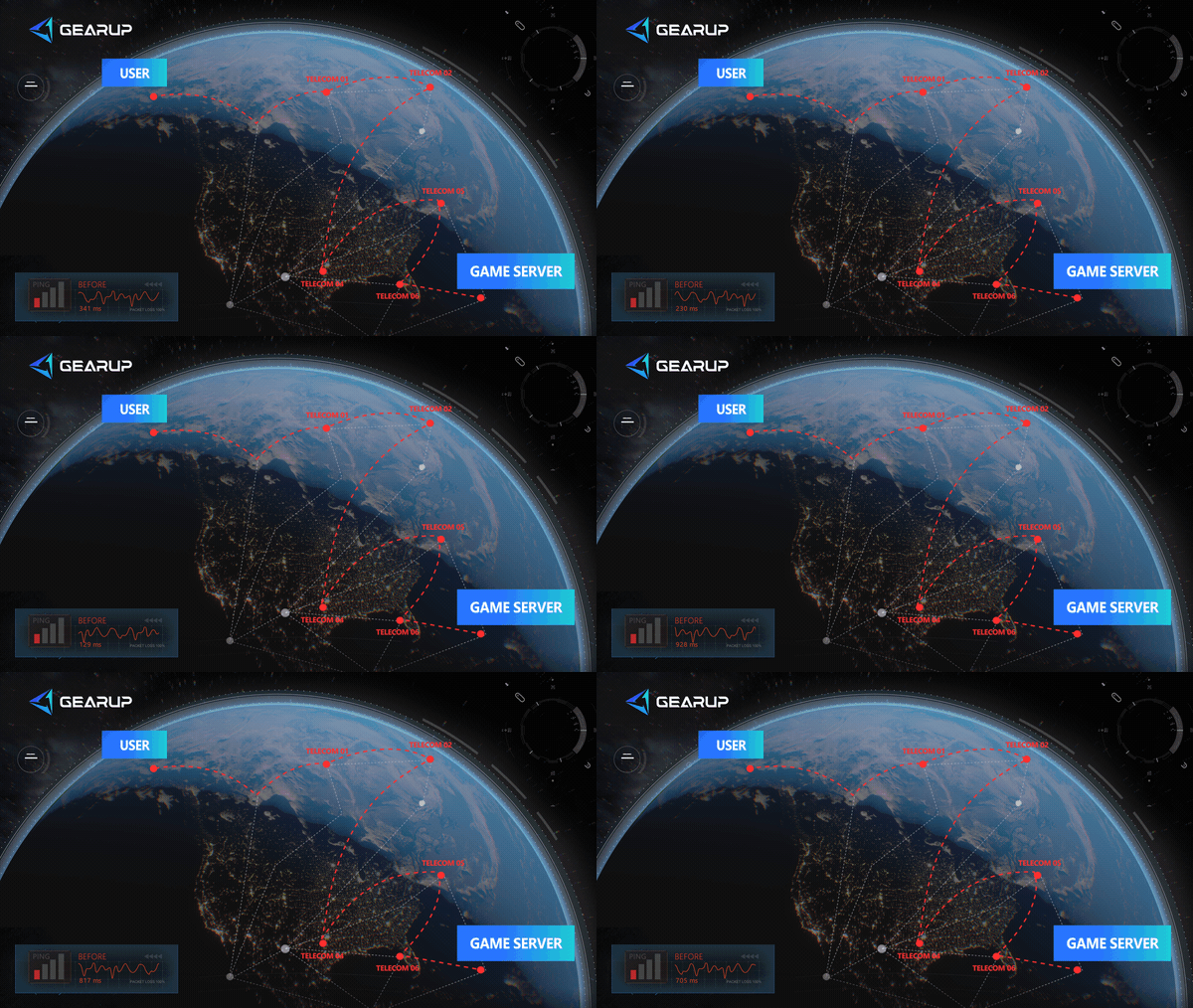
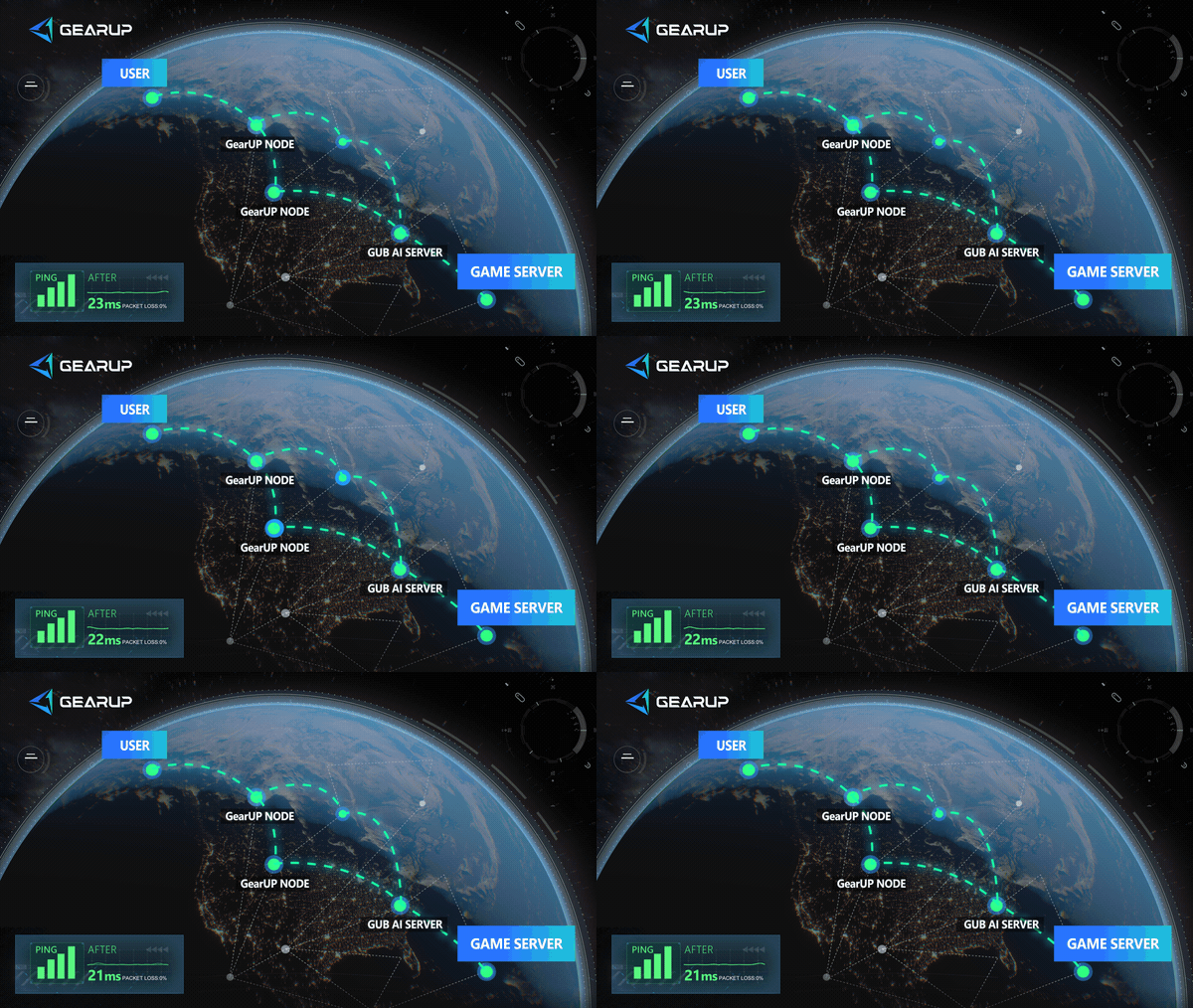

The GearUP client is very lightweight, runs silently in the background without affecting gameplay, and provides real-time network protection so you need not fear sudden network jitter. Players only need to follow three steps:
- Search for Diablo II.
- Select a server; the closer the server, the lower the latency.
- Click Start Boost, let GearUP run in the background, then launch the game.
For players on consoles, GearUP also provides another option: a router plugin. It has already formed deep partnerships with multiple router brands and supports routers running OpenWrt. After enabling the plugin, you can easily reduce latency through the GearUP Router App:
Use a Wired Connection
Ethernet eliminates the interference and instability that come with WiFi. Even short wireless interruptions can cause noticeable rubberbanding, so a wired connection is the simplest and most effective fix for network lag.
Close Unnecessary Background Programs
Applications running in the background can consume RAM and CPU resources that Diablo II needs. To clean them up:
- Press Ctrl + Shift + Esc to open Task Manager.
- Click the Processes tab.
- Sort by CPU or Memory to find the most resource-hungry apps.
- Right-click any non-essential program (browsers, launchers, RGB utilities, etc.) and select End Task.
- Avoid closing anything you don't recognize, as some processes are essential for Windows to run properly.
Fix Performance Stutter in Diablo II
Improve PC Specs
In terms of computer performance, we recommend checking your PC components to see if they meet the official recommended system requirements for the game:
| Component | Minimum | Recommended |
|---|---|---|
| Operating System | Windows® 10 64-bit | Windows® 10 64-bit |
| Processor | Intel® Core i3-3250 or AMD FX-4350 | Intel® Core i5-9600K or AMD Ryzen™ 5 2600 |
| Memory | 8 GB RAM | 16 GB RAM |
| Graphics | NVIDIA® GeForce® GTX 660 or AMD Radeon™ HD 7850 | NVIDIA® GeForce® GTX 1060 or AMD Radeon™ RX 5500 XT |
| Storage | 30 GB available space | 30 GB available space |
| Resolution | 1280 x 720 | 1920 x 1080 (1080p) |
| Network | Broadband Internet connection | Broadband Internet connection |
Lower Graphics Settings
Try reducing:
- Shadow quality
- Anti-aliasing
- Ambient occlusion
- Texture filtering
Even small reductions can stabilize FPS significantly.
Diablo II Latency Quick FAQ
Q1: Why does the game freeze during large battles?
A: This is usually a performance stutter caused by CPU or GPU overload rather than internet lag.
Q2: Should I play on the closest server region?
A: Usually yes. Nearby servers generally provide the lowest ping and best gameplay stability.
Q3: Why does data take a detour?
A: Many players choose a closer server but still experience latency. This is because ISPs allocate routing nodes based on actual network conditions, so it's difficult to guarantee you'll be routed through the optimal node every time, which is a key reason latency can be unstable.
Q4: Is GearUP safe software?
A: Yes, you can use it with complete confidence. GearUP reduces latency by optimizing nodes, does not modify game data, and does not involve user privacy — it is very safe and reliable.
Conclusion
Even after all these years, Diablo II remains one of the most addictive ARPG experiences ever made. But because online ladder play depends heavily on stable server communication, lag problems can quickly ruin the experience. Using optimized routing tools like GearUP, improving your network setup, updating drivers, and optimizing graphics settings can dramatically improve gameplay stability and responsiveness.
About The Author
Lucas Harrison is GearUP’s PC game expert and a veteran media professional with many years of experience. He is well versed in the various network issues that affect PC games and has extensive insights into solving them, having proposed numerous suggestions for optimizing GearUP’s PC version. He currently serves as GearUP’s Content Creation Lead, primarily responsible for writing GearUP’s PC network optimization guides, which aim to help players understand the problems they’re facing and provide practical, effective solutions through clear, easy-to-follow guidance.
The End