Quick Guide to Fix WARDOGS Server Connection Failures
 Last updated: 4 Sep, 2026
  7 min
7 minIf you are reading this guide, you may already be experiencing connection problems in WARDOGS. After loading for nearly 30 seconds, the game may fail to login or start a match and show an error message. Sometimes, it disconnects before loading is complete.
Follow the checks below to identify the most common causes and fix the connection as quickly as possible.
3-Minute Quick Check
Start with these basic checks:
- Confirm that other apps can access the internet: Open a website in your browser or launch another online game. If nothing can connect, the problem may be related to your router or ISP.
- Restart WARDOGS and Steam: Fully close WARDOGS and Steam instead of only closing the windows. Restart Steam, then launch the game again.
- Check the server status: If many players cannot enter the game at the same time, the Beta servers may be crowded or temporarily offline. Check official announcements, the Steam Community, and the in-game server list.
- Verify the game files: In Steam, right-click WARDOGS and open:
Properties→Installed Files→Verify integrity of game files - Check Steam downloads and updates: An active Steam download may affect game startup and server connections. Open the Steam Downloads page, pause other downloads, and try again.
- Restart your router: Turn off the router, wait about 30 seconds, and turn it on again. Launch the game after the connection is fully restored.
If these checks do not solve the problem, continue by checking Windows Firewall and your connection type.
Check Network Access Restrictions
This section is not about whether your device is connected to the internet. It checks whether Steam or the game client is being blocked by Windows Firewall.
When you first launch Steam or WARDOGS, Windows may ask whether you want to allow the application to communicate through the firewall. If you accidentally select “Cancel” or “Don’t Allow,” the game may be unable to connect to the server. Security software with network protection can cause similar issues.
Allow Steam and WARDOGS Through the Firewall
- Press
Win + S, search for, and open Allow an app through Windows Firewall; - Click Change settings in the upper-right corner;
- Find
Steam,Steam Client Bootstrapper, or WARDOGS in the list; - Select both Private and Public networks;
- If WARDOGS is not listed, click Allow another app;
- Select the game’s executable file;
- Click Add and save the settings;
- Fully restart Steam and the game.
If you use third-party antivirus software, a firewall, or a network management tool, check its blocked-app list as well. Allow Steam and WARDOGS to access the internet, but do not disable all security protection.
Confirm Steam’s Network Status
Open Steam and make sure it is not running in Offline Mode. You can also sign out of your Steam account, sign in again, and then launch the game.
If the Steam Store, Friends List, and other online features are also unavailable, the problem may not be limited to the game. Restore Steam’s network access first.
Check for Wi-Fi Signal Fluctuations
A Wi-Fi connection may appear normal during basic checks but suddenly disconnect after you enter the game. Websites and videos can usually reconnect automatically, while a game connection may fail immediately.
Check Whether Wi-Fi Is the Problem
- Enter the game while connected through Wi-Fi;
- Record the time when the connection fails;
- Check the Wi-Fi icon in the Windows taskbar;
- See whether other devices lose their connection at the same time;
- If possible, connect your computer with an Ethernet cable and test again.
If the connection becomes stable when using Ethernet, the problem is likely related to the wireless signal rather than the server.
Fix the Wireless Connection
Try the following steps:
- Move your computer closer to the router;
- Keep the router away from walls, metal objects, and large appliances;
- Pause HD video streaming, cloud synchronization, and large downloads on other devices;
- Restart the router and computer;
- Update your wireless network adapter driver;
- Forget the current Wi-Fi network in Windows, then reconnect;
- If your router provides multiple Wi-Fi networks, connect to the one with the more stable signal;
- Test the connection with Ethernet.
If only the game fails to connect while other devices and games work normally, Wi-Fi may not be the only cause. You should also check the public network route.
What If the Public Network Route Is the Problem?
Some players find that their device, router, and Wi-Fi are working normally, but the game still fails to connect to the server or shows unstable latency.
Game data usually follows this path:
Device → Local router → ISP network → Multiple public routing nodes → Game server
The server response then travels back to your device through the network. If one of the public nodes becomes congested or experiences packet loss or a temporary fault, you may encounter connection timeouts, loading failures, or disconnections after entering a match.
These nodes are controlled by ISPs and network service providers. Regular users cannot repair them manually. Changing your DNS or restarting your computer may not change the actual route used by the game.
Use a Game Network Optimization Tool
GearUP can select a more suitable relay node and connection route based on the WARDOGS server and your network conditions. It can also adjust the route according to network conditions, reducing the effect of congestion on public routing nodes.
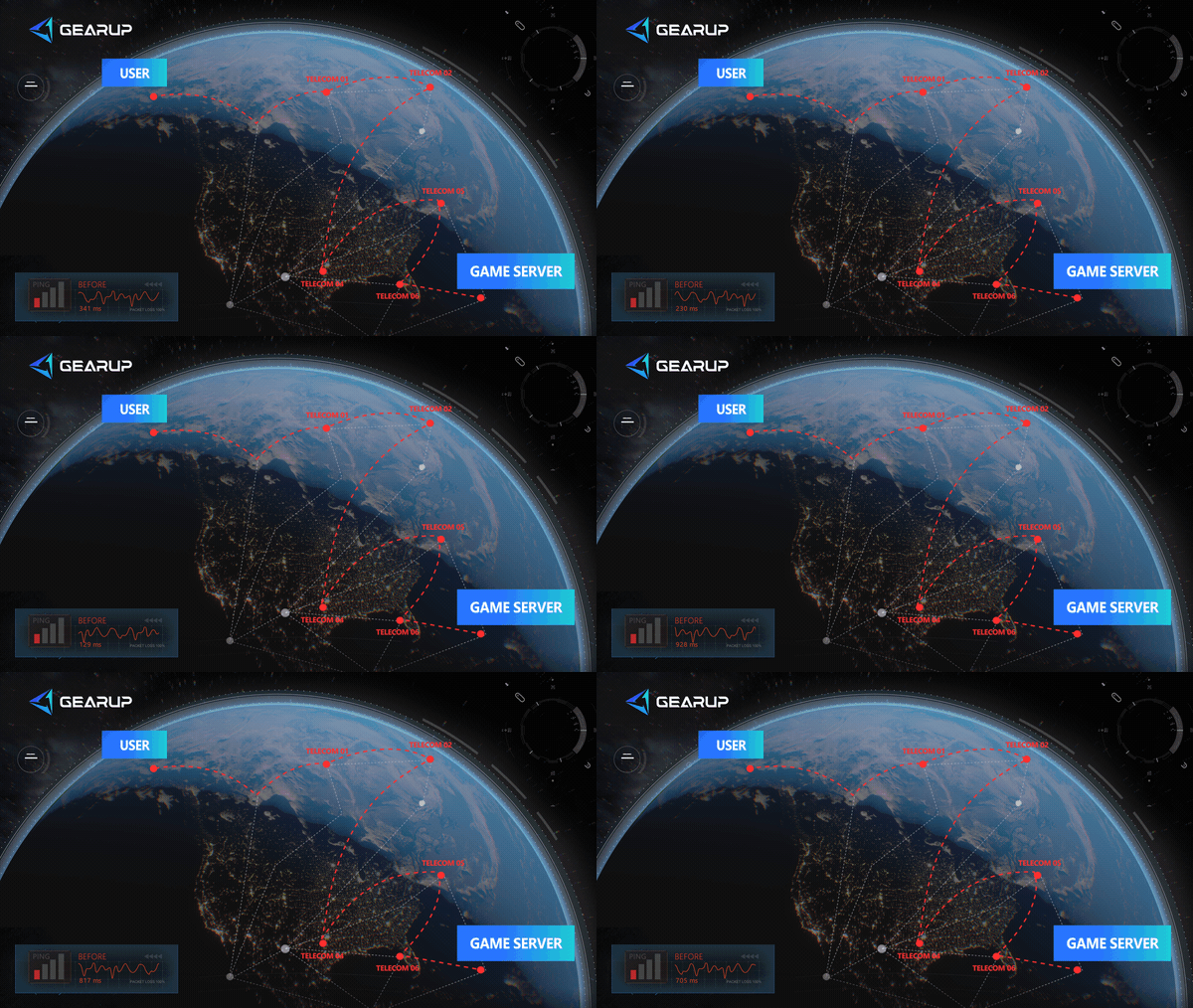
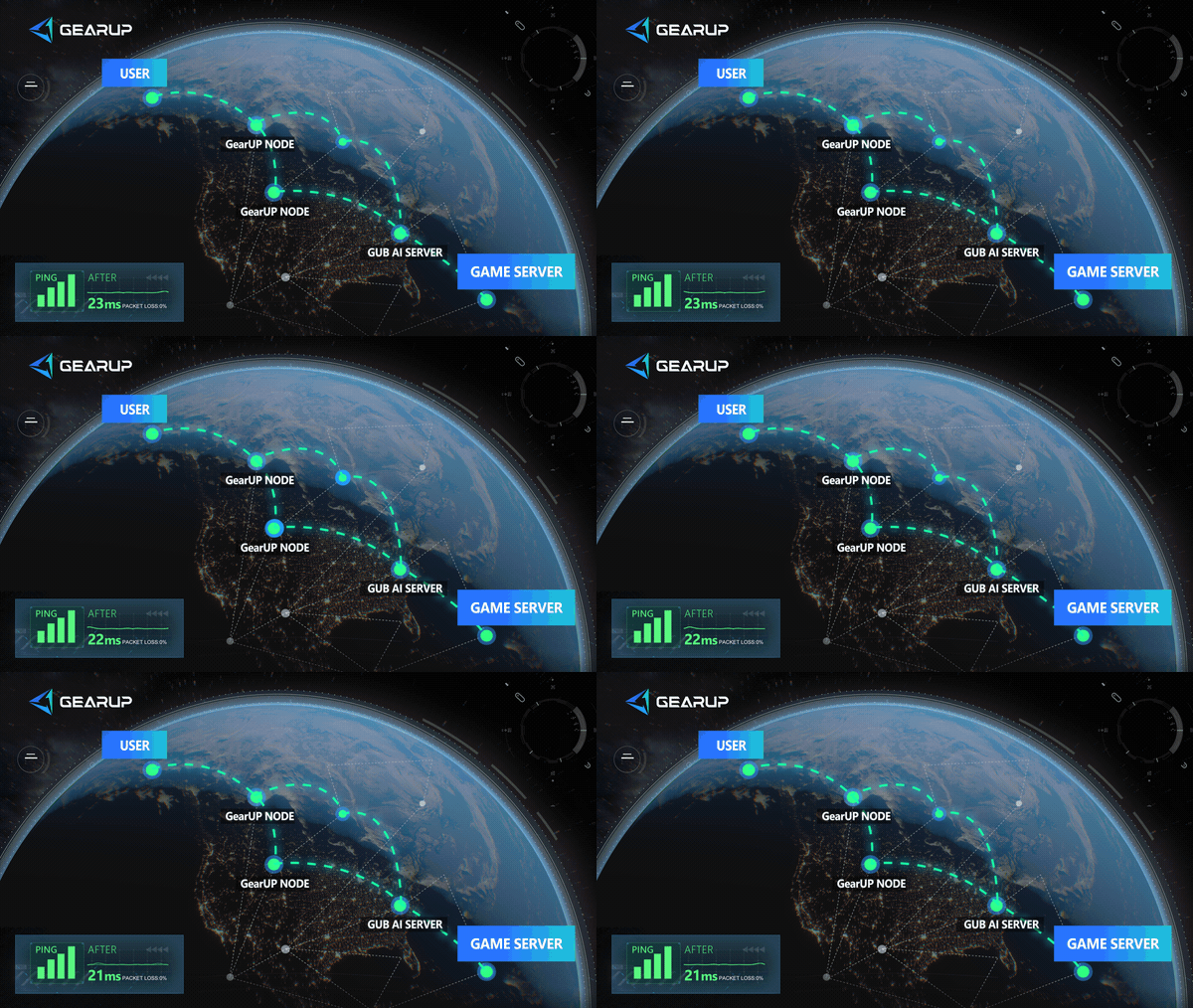
With GearUP, you do not need to modify router settings manually or inspect public routing nodes one by one. Launch the tool, search for WARDOGS, select a game node, start the boost, and then enter the game to test the connection.

This option is especially useful when:
- The game fails to connect after loading for a long time;
- Other websites and applications can access the internet normally;
- Latency changes significantly when you switch server regions;
- You experience packet loss, disconnections, or problems entering a server;
- The issue continues after switching to Ethernet.
A network optimization tool cannot fix a server outage, faulty computer hardware, or a complete ISP outage. If only the official servers are affected, check their status first.
Can I Change My ISP?
You can, but changing your ISP may not solve the connection failure.
Different ISPs may use different backbone networks, peering routes, and public routing nodes. As a result, changing providers can sometimes change your connection route. However, upgrading your plan usually only increases your bandwidth limit. It does not guarantee that your game traffic will use a better route.
Keep these points in mind:
- An ISP’s default route is not optimized specifically for a particular game;
- Higher download speed does not automatically mean lower game latency;
- Upgrading your plan may not switch you to different routing nodes;
- A new ISP may also use congested or low-quality cross-region routes.
If you only want to solve a cross-region connection problem, testing Ethernet, trying different server regions, or using a game network optimization tool is usually easier to verify than changing your ISP.
Is the Problem Related to the Server?
It can be. Server congestion, maintenance, and temporary outages can all prevent players from entering a match.
During the Beta test, the official team stated that the number of players and the access pressure exceeded expectations. As a result, some players experienced long queue times, connection failures, and loading problems. Even if your local network is working normally, you may not be able to enter the game immediately in this situation.
However, server issues are not the only possible cause of every connection failure. Open the in-game server list to check available regions and real-time latency.
The WARDOGS server list may include the following regions:
- Europe (Central)
- Europe (East)
- North America (East)
- North America (West)
- South America
- Asia (East)
- Asia (Southeast)
- Oceania
Server regions and availability may change during the test. Treat the in-game list as the most accurate reference for the current server status.
If a region has no available servers or many players report connection failures at the same time, the problem is more likely to be server-side. If only you cannot connect while other regions are working normally, continue checking your local network and connection route.
When the connection fails, do not keep clicking “Reconnect.” If the problem is caused by a firewall restriction, wireless disconnection, or public network route, repeating the same action will not change the connection conditions. Identify the cause first, then choose the appropriate fix.
About The Author
Lucas Harrison is GearUP’s PC game expert and a veteran media professional with many years of experience. He is well versed in the various network issues that affect PC games and has extensive insights into solving them, having proposed numerous suggestions for optimizing GearUP’s PC version. He currently serves as GearUP’s Content Creation Lead, primarily responsible for writing GearUP’s PC network optimization guides, which aim to help players understand the problems they’re facing and provide practical, effective solutions through clear, easy-to-follow guidance.
The End