How to Fix Error Code -101 on Steam Hardware
 Last updated: 6 Jul, 2026
  6 min
6 minPlayers familiar with Steam should know its common error code -101, usually called "connection timed out." This issue also occurs on Steam hardware, and many players encounter this message when connecting to Steam servers, or when accessing the store or community. So for hardware devices like the Steam Deck and Steam Machine, how should you resolve error code -101?
This guide is aimed at Steam Deck and Steam Machine users.
What Is Error Code -101 on Steam Hardware?
On the Steam Deck and Steam Machine, this error code appears when a network request from your device does not receive a response from Steam's servers within the allotted time. As the message indicates, your data transfer timed out — either it did not reach the server or no response returned. Common causes include:
- Unstable network — Packet loss or high latency prevents Steam from loading data properly.
- DNS issues — Incorrect DNS settings can block Steam's server addresses from resolving.
- Proxy misconfiguration — Wrong proxy settings can prevent Steam from reaching its servers.
- ISP routing problems — Your provider may route traffic through congested paths, especially when connecting to distant servers.
Quick Fix for -101 on Steam Hardware
When you encounter error -101 on the PC version of Steam, you might not be too worried because the openness of Windows lets you try various solutions. But what about hardware running SteamOS? If you're looking for a simple, effective, and stable solution, we recommend using GearUP's plugin specifically released for Steam hardware.
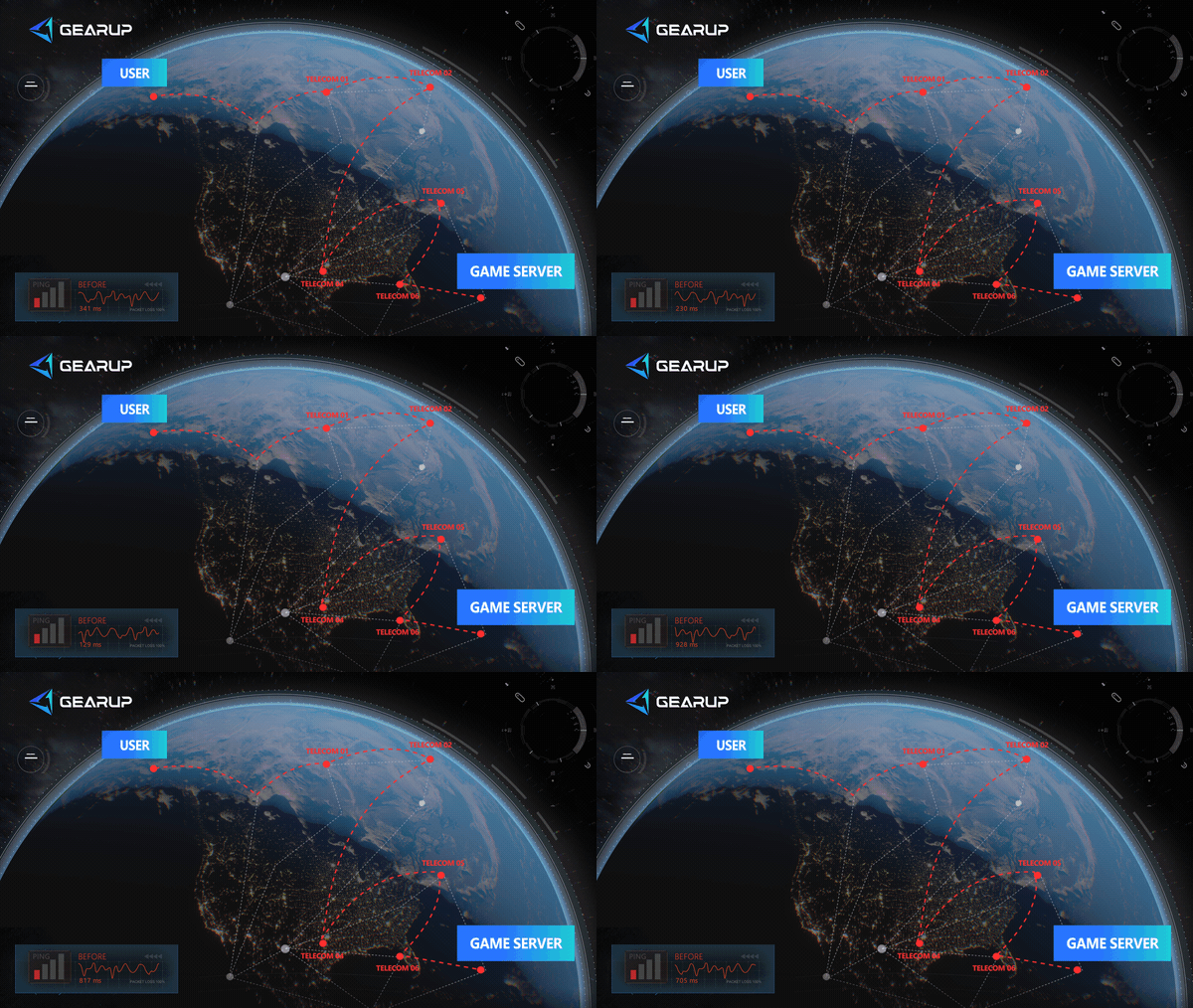
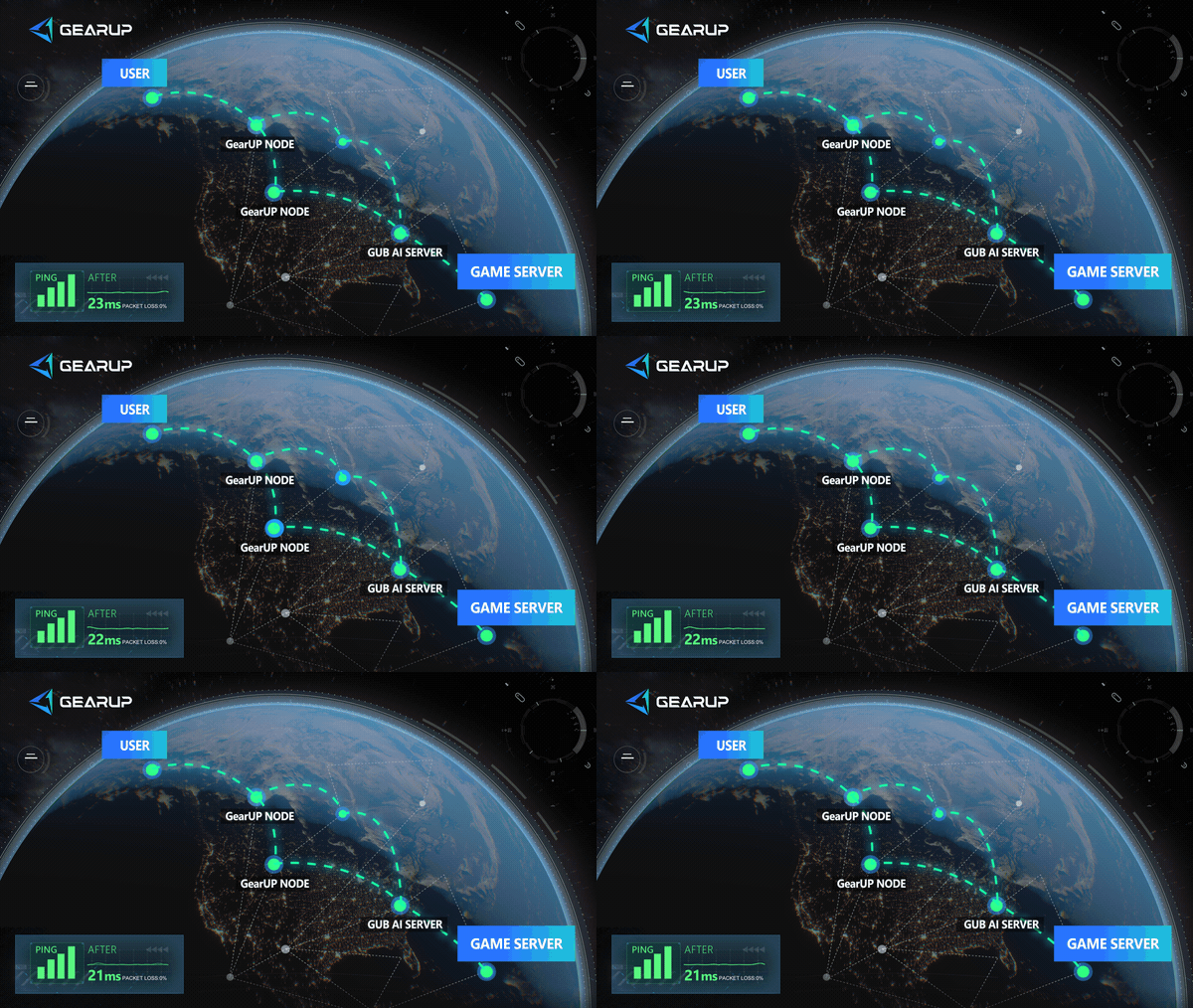
It has inherent advantages:
- Installed on Steam hardware, highly compatible
- Controlled by the GearUP Router App, simple and easy to use
- Low resource usage, will not cause game stuttering
- Optimizes for each game and server
- Usable anytime, anywhere
GearUP has deployed a large number of network nodes globally, enabling precise and dynamic switching. It adjusts in real time based on the game you're playing and the server you connect to. Not only is the effect better, it's also a more suitable choice for Steam hardware players. Now you only need to click below or scan the QR code to download the GearUP Router App and follow the built-in tutorial to complete the installation:
If you are interested in the GearUP plugin, you are welcome to join our discussion group: https://t.me/+r27k5E9JCIRkN2Q8
Are Steam Hardware Devices More Prone to This Error Code?
As mentioned above, based on the causes, the more complex usage scenarios of Steam hardware do make this error more likely to occur. GearUP can help solve issues with public network routing nodes, but local network usage also has a significant impact. This includes:
Connect to a More Stable Network
Even a strong Wi-Fi connection can be unstable if the network itself has issues. Try these steps:
- Press the STEAM button and go to Settings → Internet.
- Disconnect from your current network.
- Connect to a different Wi-Fi network, preferably one with less traffic or a stronger signal.
- If possible, move closer to your router to improve signal strength.
- Launch Steam and check if the error is resolved.
A stable Wi-Fi connection is always better than a fast but unreliable one. Of course, if conditions permit, it's best to use a wired connection.
Don't Modify Network Settings or Use a Proxy
Changing advanced network settings or using a proxy can cause Steam to fail its connection to the servers. If you've made changes before, revert them:
- Press the STEAM button and go to Settings → Internet.
- Select your current network and tap the gear icon.
- Make sure IP Address and DNS are both set to Automatic.
- If you have a proxy configured, set it to None or Off.
- Save the settings and reconnect to the network.
- Restart your Steam Hardware and try again.
If you're unsure whether settings have been changed, the safest approach is to forget the network and reconnect fresh:
- Go to Settings → Internet → select your network → Forget.
- Reconnect and enter your Wi-Fi password again.
Clear the Steam Cache
Corrupted cache files can prevent Steam from connecting to its servers. To clear the cache:
- Press the STEAM button and go to Settings.
- Scroll down to Storage or navigate to the Steam client settings.
- Select Clear Cache and confirm.
- Steam will restart automatically.
- Log back in and check if the error is resolved.
If the option isn't available in Steam Hardware mode, switch to Desktop Mode:
- Press the STEAM button → Power → Switch to Desktop.
- Open the Steam client in Desktop Mode.
- Click Steam in the top-left corner → Settings → Downloads.
- Click Clear Download Cache → OK.
- Steam will restart. Log back in and test the connection.
Error Code -101 on Steam Hardware — FAQ
Q1: Why does Steam hardware show the error code on the same network whereas PC Steam does not?
A: This could be due to issues with how your Steam hardware connects to the local network. Also check your Steam hardware settings, then use the GearUP plugin to optimize.
Q2: Why is the connection unstable, and why does the -101 error only appear sometimes?
A: This means your connection has jitter, or there may be DNS pollution and similar issues; you need to use tools to stabilize the connection.
Q3: Is it safe to install GearUP on Steam hardware?
A: Yes. First, GearUP is a completely safe piece of software; it only optimizes network paths and has been validated by players worldwide. Second, the GearUP plugin is essentially the plugin version of the PC GearUP; its security is no different in essence, so you can use it with confidence.
Summary
Seeing error -101 on your Steam Deck or Machine when you try to connect to Steam services is certainly disappointing. However, don't think fixing the error on these two pieces of hardware is difficult, because GearUP now has a plugin-version solution that frees you from other constraints, letting you easily optimize your connection and get a stable experience.
About The Author
Jamal Malone is one of GearUP's Hardware Product Specialists, specializing in gaming hardware, plugin technologies, and compatibility optimization. He contributes to the development of GearUP's hardware ecosystem, including HYPEREV and the GearUP Plugin, with a focus on improving compatibility across different devices and platforms. Through detailed yet approachable articles, Jamal helps players understand hardware configurations, plugin setup, and advanced troubleshooting, making complex technical topics easier to apply in real-world gaming environments.
The End