How to Fix Rainbow Six Siege X Console Server Connection
 Last updated: 29 May, 2026
  7 min
7 minRainbow Six Siege X depends on fast tactical decisions and stable online play. On console, your PlayStation or Xbox needs a reliable connection to Ubisoft services for logging in, joining squads, matchmaking, and staying in rounds. When that connection breaks, it can be confusing since your console may still stream, download, and browse normally.
Siege X makes connection issues more visible than most online games. A routing spike can delay a peek, a packet-loss burst can drop you from a ranked match, and a NAT problem can block party features before a match even starts. This guide focuses on console-side connection issues and how to stabilize Rainbow Six Siege X with GearUP Router Plugin or HYPEREV.
Start by Identifying What Kind of Connection Problem You Have
Not every Rainbow Six Siege X connection problem happens at the same point, and the timing tells you where to start.
If the game cannot reach the title screen or Ubisoft Connect, begin with official service status, platform services, and account login. If matchmaking starts but fails, look at NAT type, region routing, squad crossplay, and server selection. If the match begins normally but you disconnect mid-round, packet loss, WiFi instability, router overload, or ISP routing is more likely.
Common console symptoms include:
- Stuck on "connecting to servers" after launch.
- Ubisoft Connect login fails on PlayStation or Xbox.
- Matchmaking searches for a long time and then cancels.
- Squad members can invite each other, but one player cannot enter the session.
- The match loads, then returns to the menu.
- Sudden disconnection during ranked or standard matches.
- Voice chat or party behavior fails because of NAT restrictions.
- Ping jumps before the game removes you from the lobby.
- Crossplay sessions feel less stable than same-platform sessions.
This matters because reinstalling the game will not fix a temporary outage, and changing DNS will not solve a weak WiFi signal. A good fix starts with the correct category.
So How Should We Stabilize Rainbow Six X(Console) Connections?
Check Ubisoft, PlayStation, and Xbox Status First
1. Check Service Status First
Before changing any settings, confirm the servers are actually online:
- Check the official Rainbow Six Siege service status page
- If on console, also check PlayStation Network or Xbox Network status
- If many players are reporting issues at the same time, the best fix is simply to wait
2. Make Sure the Game Is Updated
Siege X relies on current files for online compatibility. The server may reject your session if:
- A console update was paused
- Storage ran out mid-download
- A patch failed to install properly
3. Restart the Game After Updating
Quick Resume on Xbox and Rest Mode on PlayStation can preserve an old network session in the background. Fully closing and reopening the game forces a fresh login and clears any stale connection data.
Fix Routing Nodes with the GearUP Router Plugin
If official services are online and your game is updated, the next step is to improve the route between your console and the Siege X server. This is where GearUP Router Plugin is useful for PlayStation and Xbox players.
Unlike PC software, GearUP Router Plugin works from the router side. That is important because consoles do not allow normal game booster apps to run directly in the background. The GearUP plugin can accurately identify traffic using intelligent algorithms and optimize the transmission paths after traffic leaves your home network, thereby stabilizing the connection and reducing latency in Rainbow Six.
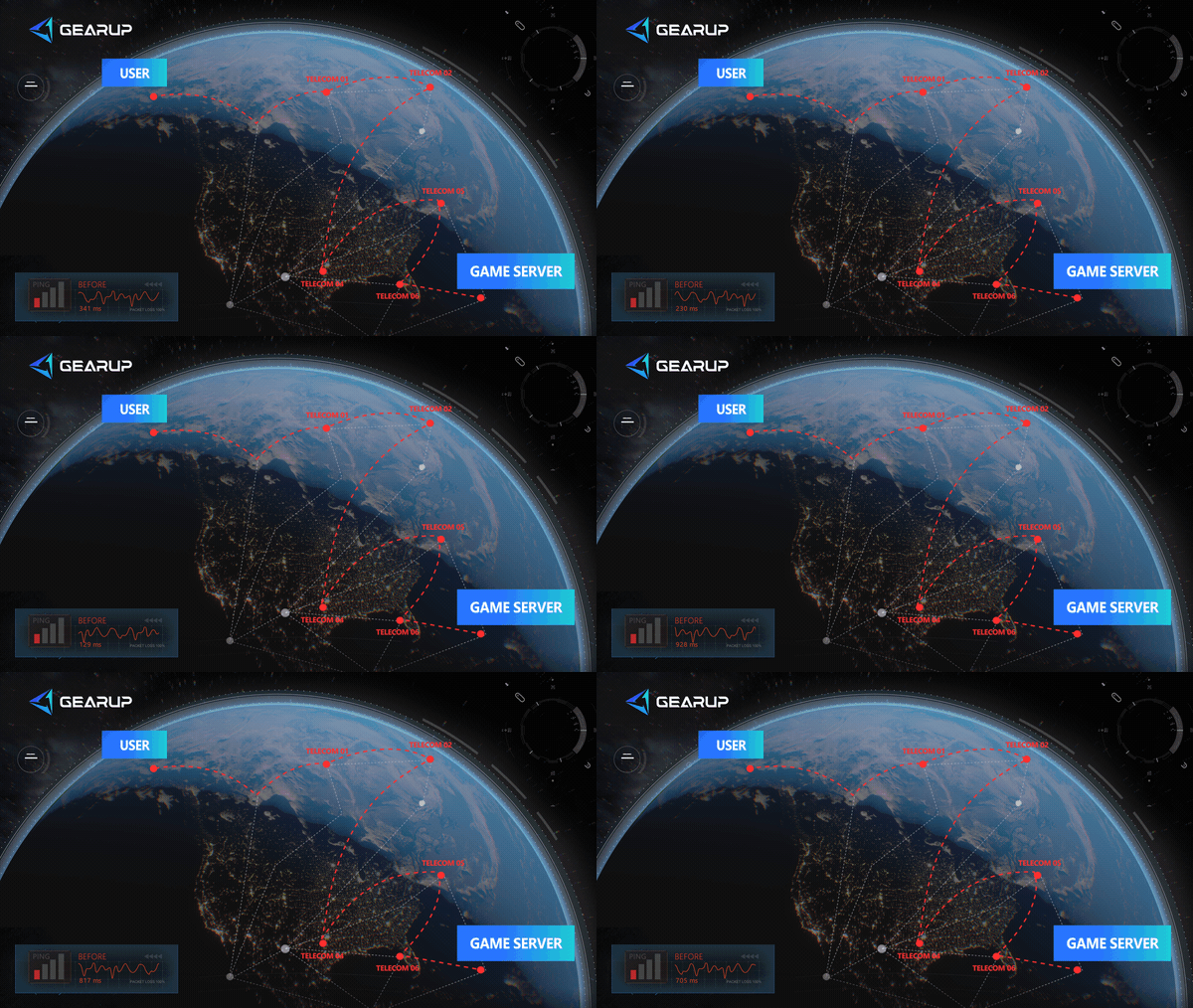
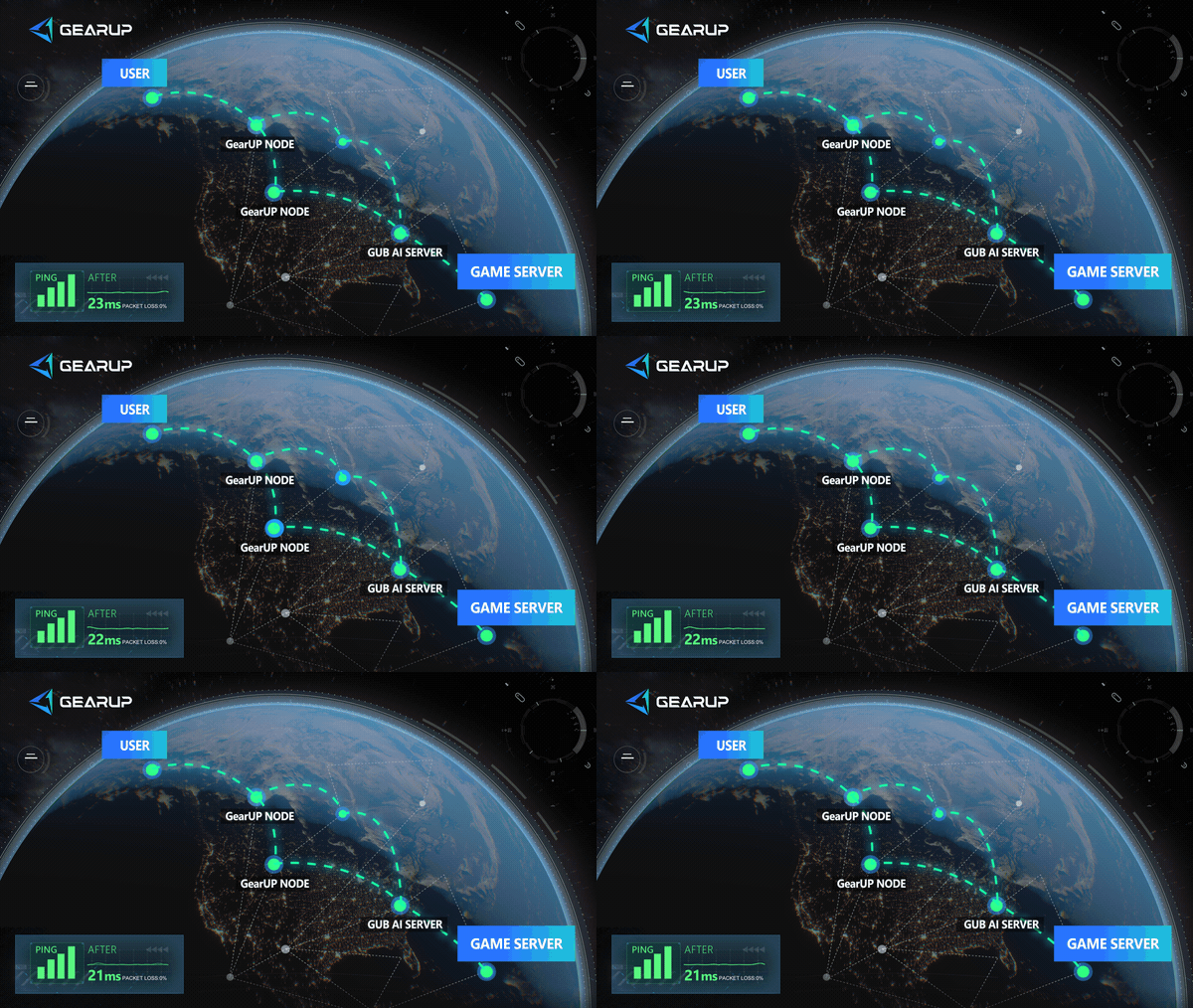
You can use routers from GearUP’s partner brands, such as ASUS and ZTE, which have the plugin built in. You can also install the plugin on routers running OpenWrt, and then easily start network optimization through the GearUP App:
The range of router models compatible with the GearUP plugin is still growing. If your router isn’t supported yet, GearUP’s HYPEREV is also a good option; it works with any home router, is plug-and-play, and very convenient:
Switch to a wired connection
WiFi is convenient but prone to interference that causes packet loss and latency spikes.
- Connect an ethernet cable from your router to your PlayStation or Xbox
- Go to Settings > Network > Set Up Internet Connection on PlayStation, or Settings > General > Network Settings on Xbox
- Select the wired connection option and let the console configure it automatically
- Launch Siege X and check if the connection improves
Restart your router
Routers can accumulate stale connections and routing errors over time.
- Unplug your router from the power outlet
- Wait at least 30 seconds
- Plug it back in and wait for all indicator lights to stabilize
- Reconnect your console and launch the game
Clear DNS and proxy settings.
Old or misconfigured network settings can interfere with how your console connects to Ubisoft servers.
On PlayStation:
- Go to Settings > Network > Set Up Internet Connection
- Select your current connection and choose Advanced Settings
- Set DNS to Automatic and Proxy to Do Not Use
- Save and test the connection
On Xbox:
- Go to Settings > General > Network Settings > Advanced Settings
- Clear any custom DNS or proxy entries
- Save and test the connection
Rainbow Six Siege X Server Regions
Refer to the server locations below and try to choose a server that’s closer to you, because shorter transmission paths reduce the likelihood of instability or connection failures. If you must connect across regions, we recommend using the GearUP plugin to optimize the route for you:
Asia & Oceania
- Asia East (Hong Kong)
- Asia South East (Singapore)
- Japan (Tokyo / Osaka)
- Korea Central (Seoul)
- India Central
- Australia East (Sydney)
Europe
- Europe West (Frankfurt / Amsterdam)
- Europe North (Ireland / UK)
Americas
- United States (Virginia / Iowa / Texas / California)
- Brazil South (São Paulo)
Africa & Middle East
- UAE North (Dubai)
- South Africa North (Johannesburg)
FAQ: Rainbow Six Siege X Console Server Connection Issues
Q1: Why can my console go online but Rainbow Six Siege X cannot connect?
A: Web browsing and downloads tolerate delay much better than Siege X. The game needs account authentication, matchmaking services, NAT compatibility, and a stable real-time route.
Q2: Can GearUP Router Plugin fix Siege X server connection errors?
A: It can help when the problem is routing, packet loss, unstable regional connection, or console traffic handling. It cannot fix official server maintenance, platform outages, or account bans.
Q3: Should I choose the GearUP plugin or HYPEREV?
A: It depends on your situation. The GearUP plugin already supports multiple router brands, and the list of partner brands is continually growing. If you need network optimization but your router doesn't support installing the plugin, HYPEREV is also an excellent option.
Q4: Should I change DNS for Rainbow Six Siege X?
A: DNS may help if the console has trouble resolving services, but it is not a complete fix for high ping, packet loss, or bad routing.
Q5: Why do I disconnect more often in ranked than in menus?
A: Menus require less constant traffic. A match needs continuous real-time updates, so packet loss or unstable routing becomes more obvious once the round begins.
Conclusion
Connection issues with the console version of Rainbow Six Siege X have indeed troubled many players, because fixing network problems on consoles can seem very difficult. But actually, all you need is the GearUP router plugin and a thorough check of your local network status and usage to optimize this as much as possible. Make your matches stable and free from disconnections while ensuring low latency. Try it now.
About The Author
Jamal Malone is one of GearUP's Hardware Product Specialists, specializing in gaming hardware, plugin technologies, and compatibility optimization. He contributes to the development of GearUP's hardware ecosystem, including HYPEREV and the GearUP Plugin, with a focus on improving compatibility across different devices and platforms. Through detailed yet approachable articles, Jamal helps players understand hardware configurations, plugin setup, and advanced troubleshooting, making complex technical topics easier to apply in real-world gaming environments.
The End