How to Fix eFootball Console Lag Issues
 Last updated: 23 Jun, 2026
  6 min
6 minCompared with the PC version, more players prefer to play eFootball on PlayStation, Xbox, or Nintendo Switch. The reasons are simple: you don't have to worry about device specs, there is better optimization, the controller offers a superior handling experience, and connecting to the big TV in the living room provides an immersive experience, especially in intense online matches.
However, all of this depends on one premise: that your match isn't ruined by latency. Yes, this may come as a surprise, but eFootball can experience latency even on consoles. That said, solutions do exist, and this guide may help you.
Why eFootball Lags on Console?
- eFootball uses peer-to-peer and client-server methods depending on the mode, and poor routing in either case creates delay.
- KONAMI hosts servers across multiple continents, but if matchmaking connects you to a faraway server, input delay increases.
- Wi-Fi is convenient but vulnerable to walls, interference, and crowded channels, while eFootball needs stable packet delivery more than raw speed.
- Cloud backups, video calls, streaming, and downloads at home can make game packets wait behind larger data transfers.
- Standard routers are built for browsing, not real-time gaming. Bufferbloat, weak QoS, or outdated firmware can make matches feel inconsistent.
If you're not sure whether lag is affecting your matches, watch for these signs during gameplay:
- Passes happen later than your button press
- Players take an extra moment before turning or shooting
- Tackles and interceptions feel mistimed
- The match speeds up or slows down unnaturally
- The antenna icon or network graph shows poor connection quality
- Online events feel worse than offline exhibition matches
- Some hours of the day feel smooth while peak hours feel heavy
- You disconnect after a period of increasing delay
The key test: If offline matches are responsive but online matches feel delayed, the problem is network lag. If every mode feels sluggish, also check your display settings, controller, and TV game mode.
GearUP Router Plugin Is the Ultimate Solution
Some players may be familiar with the GearUP game network optimization tool. Although it has not released a console version, it offers a solution via another route: a router plugin. Whether preinstalled at the factory or installed later, it provides network optimization services directly on your router, and you can easily control it through the GearUP Router App.
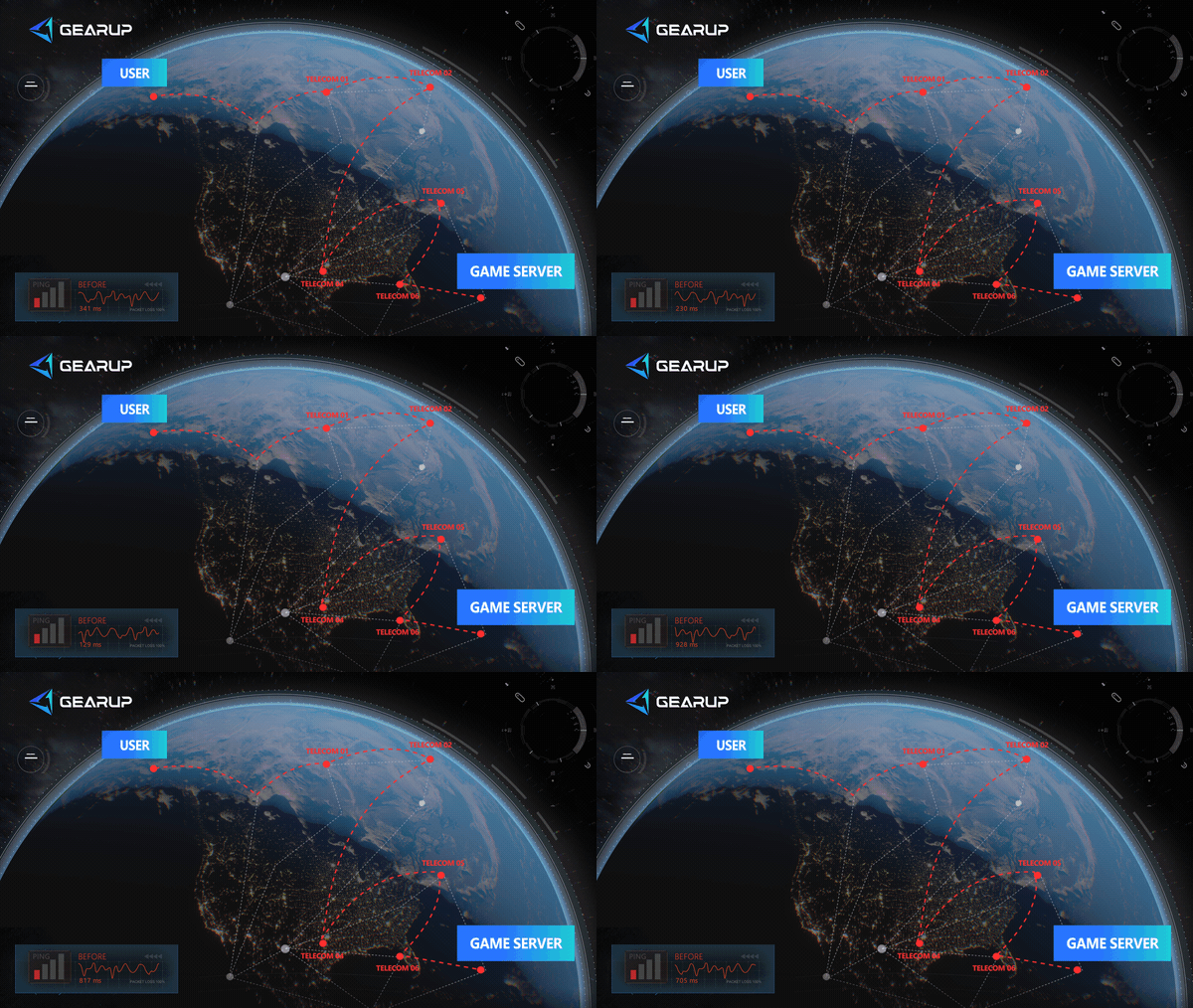
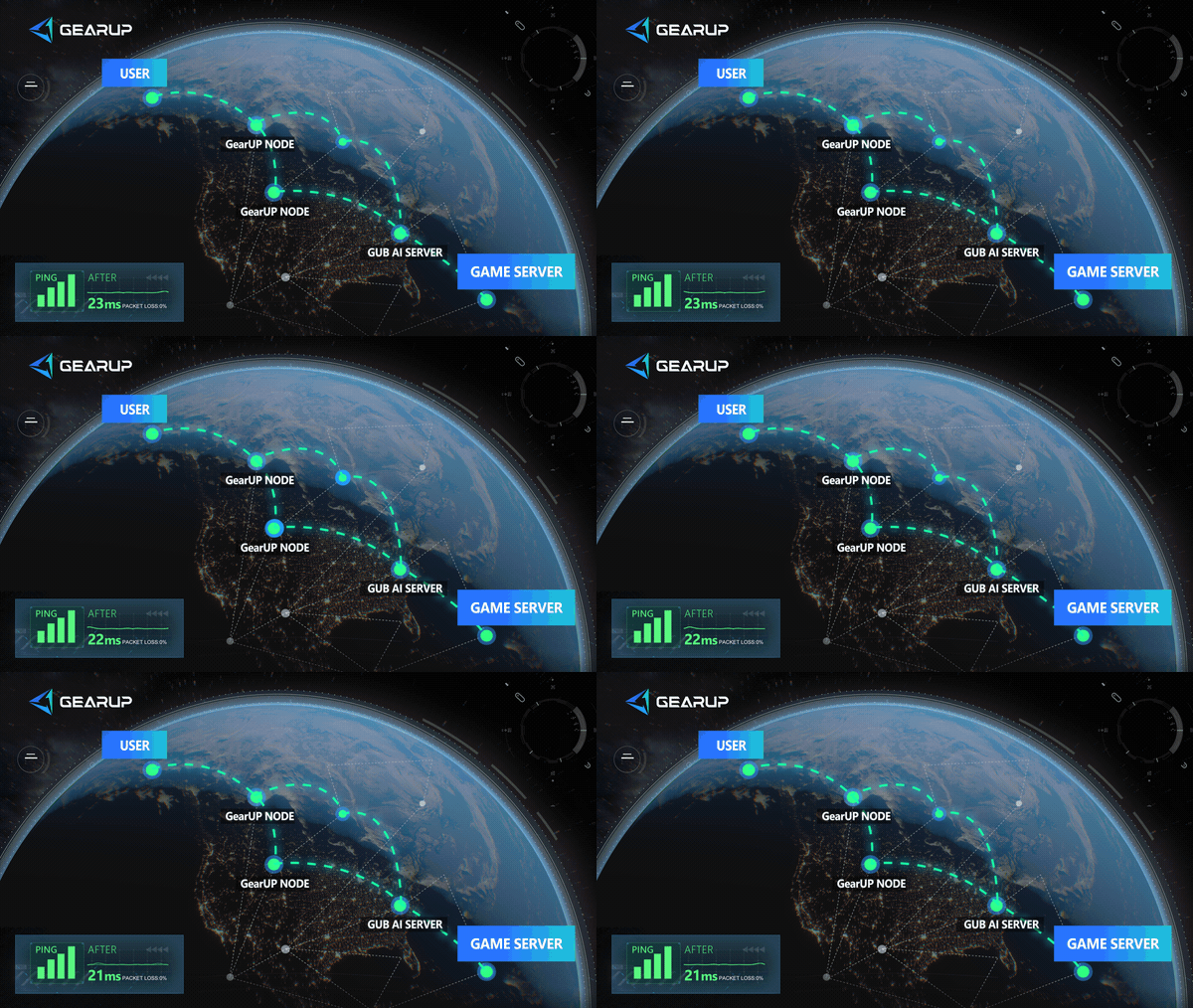
The advantages of the GearUP plugin include:
- Deep integration with multiple router brands, including ASUS and ZTE, with factory preinstallation
- Supports OpenWrt and is continually being adapted to additional systems
- Easy to install, enable once and it runs continuously
- Simple to use, any player can get started quickly
- Supports global server connection optimization, reduces eFootball latency, and optimizes device NAT
The GearUP router plugin can solve the problem of traditional routers being unable to reduce latency by providing more precise optimization. You can refer to the following tutorial to enable or install it:
GearUP plugin discussion group: https://t.me/+2L3_m7xt6ToyNWQ0
If you don't have a suitable router, GearUP still offers a second solution, HYPEREV, a device that can be connected to any home router and that also provides full game network optimization capabilities:
Restart Your Router
Routers accumulate temporary issues over time that can affect your connection quality. A simple restart clears these out.
- Unplug your router from the power outlet
- Wait at least 30 seconds
- Plug it back in and wait for all indicator lights to return to normal
- Reconnect your console to the network
- Launch eFootball and check if the connection feels better
If your router hasn't been restarted in weeks or months, this alone can make a noticeable difference.
Pause Background Downloads and Updates
This is something many console players overlook. PlayStation, Xbox, and Nintendo Switch all download game updates, system patches, and install content in the background by default. When these downloads are running while you play eFootball, they consume bandwidth and can cause serious lag spikes during matches.
On PlayStation:
- Go to Downloads/Uploads in the control center
- Pause any active or queued downloads
- Resume them after you finish playing
On Xbox:
- Press the Xbox button and go to My Games & Apps
- Select Queue and pause any ongoing downloads
- You can also set downloads to only run during off-peak hours in settings
On Nintendo Switch:
- Go to System Settings
- Select System, then Auto-Update Software, and turn it off
- Check Downloadable Content in the eShop to make sure no large downloads are in progress
Even if your internet speed seems fast, background downloads can still interfere with real-time game traffic.
Use a Wired Connection
Wi-Fi is convenient but unreliable for competitive online gaming. Walls, distance, other devices, and even microwaves can interfere with the signal. An Ethernet cable eliminates all of this.
Simply connect an Ethernet cable from your router directly to your console. If your router is far from your console, powerline adapters can carry the network signal through your home's electrical wiring, which is still more stable than Wi-Fi.
For a game like eFootball where every button press matters, a wired connection provides the consistency that Wi-Fi simply cannot guarantee.
Why a Traditional Router Cannot Fully Fix eFootball Lag
A normal router can distribute WiFi and pass traffic to the internet, but it does not usually know which packets are eFootball match traffic or which route to KONAMI's infrastructure is best. Some routers have simple QoS, but that only helps inside your home network.
GearUP Router Plugin and HYPEREV are different because they focus on the whole game route. They can prioritize game traffic and optimize the path beyond the local router, which is the part ordinary home routers cannot control.
eFootball Console Lag FAQ
Q1: What ping is good for eFootball console?
Lower is better, but stability matters most. Under 50 ms usually feels strong, 50-80 ms can be playable, and above 100 ms may feel heavy. Sudden spikes are often worse than a steady moderate ping.
Q2: Why does eFootball lag even with fast internet?
Speed is bandwidth. Lag is delay, jitter, and packet loss. A fast plan can still have poor routing or WiFi instability.
Q3: Can GearUP Router Plugin reduce input delay?
It can reduce network-related delay by improving route stability and packet delivery. It cannot fix TV input lag, controller problems, or offline performance issues.
Q4: Is the GearUP router plugin safe?
A: Yes. GearUP has partnered with multiple router manufacturers, and its security has been fully validated. It reduces latency by optimizing network nodes and fully complies with gaming security requirements.
Conclusion
eFootball console lag usually comes from unstable routing, WiFi jitter, server distance, household traffic, or router limitations. Start with wired LAN, pause background traffic, and check whether offline play feels normal. If online matches still feel heavy, GearUP Router Plugin can optimize eFootball traffic through a supported router, while HYPEREV gives console players a dedicated way to stabilize the connection without installing anything on PlayStation or Xbox.
About The Author
Maya Tran is our Market Expansion Specialist, responsible for marketing, event operations, and user growth for GearUP’s global gaming markets. She helps foster strategic partnerships with numerous game companies and leads campaign planning as well as social media and community operations across multiple GearUP product lines. Through a variety of event formats, she helps more players worldwide discover GearUP’s products and become users.
The End