How to Fix Deep Rock Galactic: Rogue Core Lag Issues
 Last updated: 25 May, 2026
  5 min
5 minDeep Rock Galactic: Rogue Core is a 1-4 player co-op FPS roguelite from Ghost Ship Games, featuring procedurally generated caves, sci-fi dwarves, and online co-op.
Since the game is built around team play, lag can hurt the whole run. A delayed revive, late shot, or unstable host connection can quickly turn a good build into a failed mission. This guide explains why lag happens, how to separate network lag from performance stutter, and how GearUP can help create a smoother co-op experience.

Why Do P2P Games Also Have Latency?
Deep Rock Galactic: Rogue Core is a game that uses P2P as its connection mode. Many players believe that this should mean there is no latency, but that is not the case. For P2P games, there are still several causes of latency:
In a P2P setup, one player acts as the host, and everyone else connects directly to them. The problem is that the host's internet quality and location directly affect all other players in the session. If the host has a slow connection, high ping, or is geographically far away, every other player will feel the delay. Unlike dedicated servers, there is no optimized infrastructure to balance the connection for everyone. On top of that, the host has a natural advantage with near-zero latency, while others may experience delayed revives, late shots, and desynced movements. A sudden network fluctuation on the host's end can also cause the entire session to lag or even disconnect for all players.
How to Reduce Rogue Core Latency?
For co-op games like Rogue Core, stable routing matters more than raw speed. The game doesn't need enormous bandwidth, but it does need consistent packet delivery. This is especially important when playing across regions. If your squad includes players in different countries, default ISP routes may not be ideal for everyone. GearUP helps by optimizing the route used for game traffic, reducing packet loss, unstable routing, and sudden ping spikes, which can minimize rubber-banding and delayed reactions.
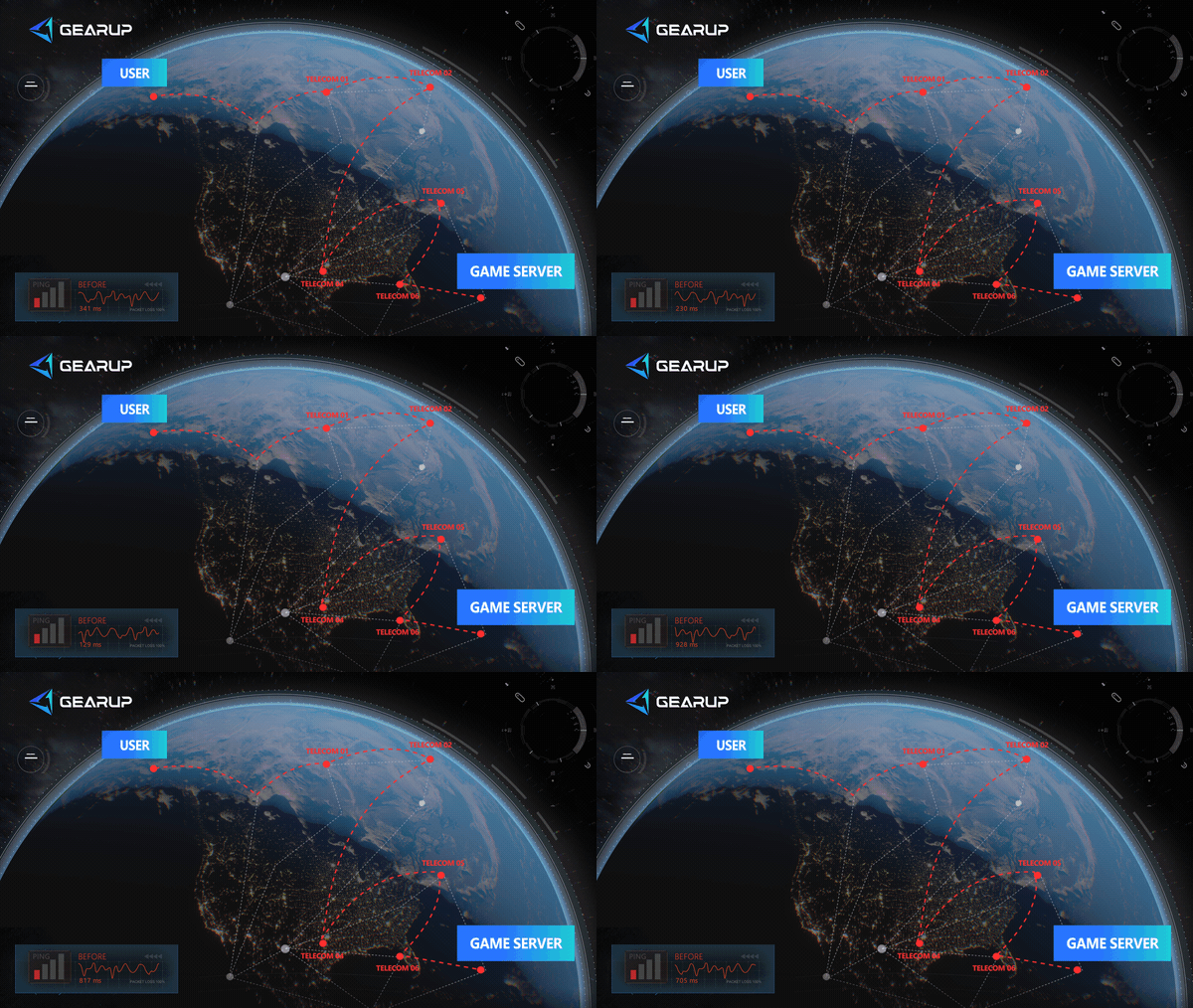
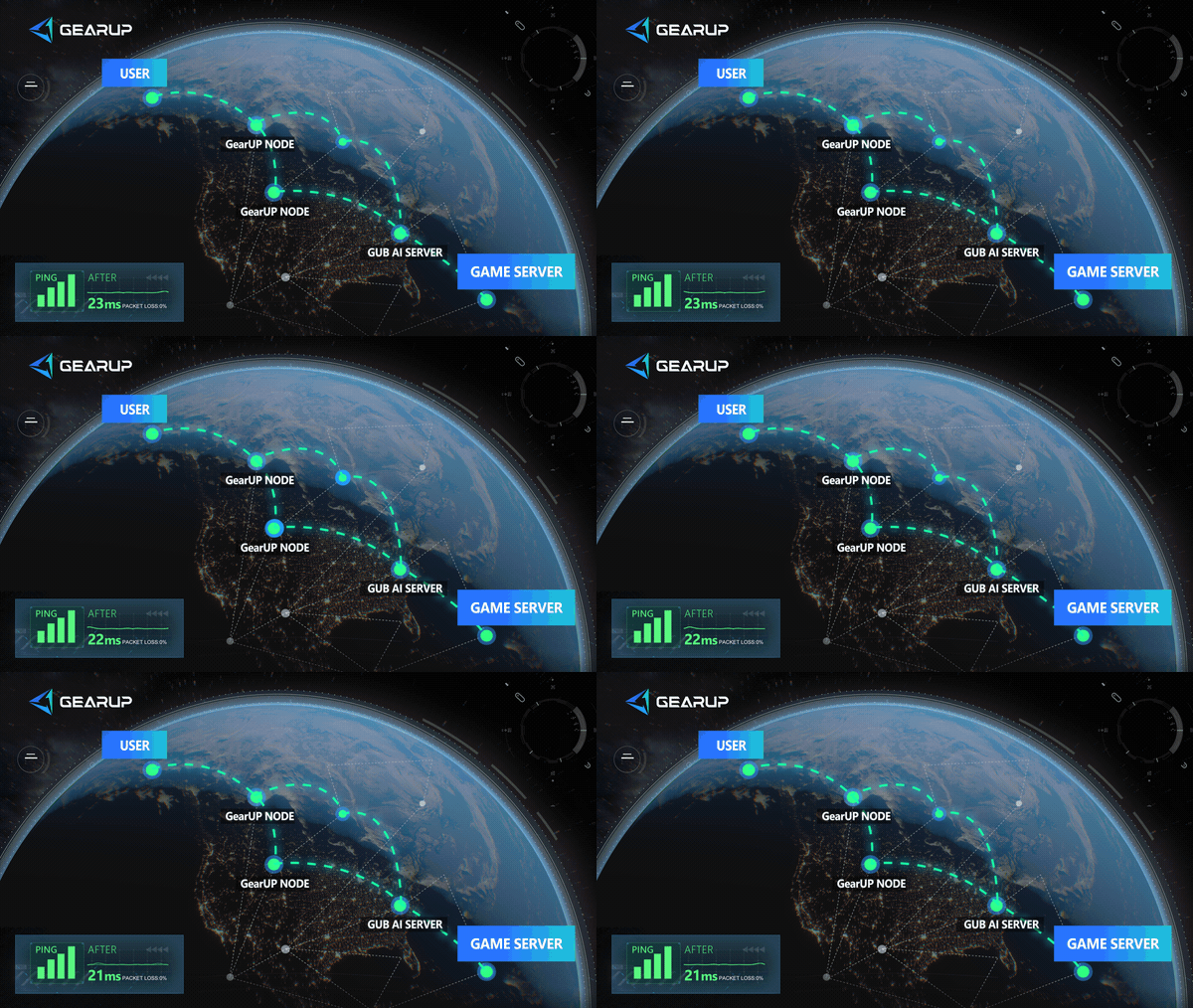

GearUP is also helpful during Early Access periods, when more players are testing the game and connection behavior may still be changing. It won't fix official server maintenance or bugs in the game build, but it can improve the network side of the experience.
- Search for Rogue Core and click boost.
- GearUP will start continuously optimizing the connection and run in the background; then launch the game. For best results, have the other players also enable GearUP.
More Things You Can Do
After GearUP optimizes your connection, you can also reduce local network issues and other sources of interference encountered during the connection process by doing the following, thereby achieving a more stable connection:
- Use Ethernet if possible. WiFi is convenient, but co-op FPS games are sensitive to packet loss. A wired connection gives Rogue Core a more stable baseline.
- Choose the best host or region for the squad. If the game uses host-based sessions or regional matchmaking, the player with the strongest and most central connection should host. If the game offers region selection, pick a region that gives the whole team reasonable ping rather than only optimizing for one player.
- Close downloads, cloud sync, and streaming apps. Upload congestion can create lag even when download speed looks fine. This matters in co-op sessions because your PC must constantly send and receive state updates.
- Restart your router if lag appears after long uptime. Temporary routing or DNS issues can build up and affect online games.
What about Performance Stutter in Rogue Core?
The official Steam page lists minimum requirements including Windows 10 64-bit, an Intel Core i5 7th gen or AMD Ryzen 5 1500X, 8 GB RAM, a GTX 970 or Radeon 290, DirectX 11, broadband internet, and 9 GB available storage. If your PC is close to the minimum, large fights may feel rough.
To reduce performance stutter:
- Lower shadows, effects, and post-processing.
- Reduce resolution scale if available.
- Close browser tabs and overlays.
- Update GPU drivers.
- Install the game on an SSD if possible.
- Keep the system cool to avoid thermal throttling.
Performance settings will likely change through Early Access, so revisit graphics settings after major patches.
Network Lag vs Performance Stutter
The easiest test is movement and visual smoothness. If the game looks smooth but enemies, teammates, or interactions respond late, the problem is probably network lag. If the camera, aiming, and effects stutter, the problem is likely performance.
GearUP helps with network lag. Graphics changes help with performance stutter. For the best result, use both approaches: optimize the route with GearUP and tune graphics so your PC can hold a stable frame rate.
FAQ: Deep Rock Galactic: Rogue Core Lag
Q1: Can switching the host to someone else reduce latency?
A: It might. The key is to choose the person with the more stable network as the host, not simply the one with the fastest connection speed.
Q2: Is GearUP increasing my internet speed?
A: No. GearUP does not raise your raw internet speed. It optimizes the network path by finding shorter routes for data and connecting you to more stable nodes, which helps reduce latency and disconnects.
Q3: Why do I suddenly get disconnected?
A: Possible causes include the host’s network experiencing an abrupt issue, jitter or instability on the network path, or a local program/device suddenly occupying your bandwidth.
Conclusion
Deep Rock Galactic: Rogue Core is built around teamwork, fast decisions, and co-op pressure, so lag can damage the entire run. Network lag usually comes from poor routing, packet loss, cross-region play, or unstable local connections. Performance stutter comes from PC limitations. GearUP is a practical way to stabilize the network side, while graphics tuning and hardware checks handle performance. With both covered, your squad has a better chance to focus on the mission instead of fighting delay.
About The Author
Jamal Malone is one of GearUP's Hardware Product Specialists, specializing in gaming hardware, plugin technologies, and compatibility optimization. He contributes to the development of GearUP's hardware ecosystem, including HYPEREV and the GearUP Plugin, with a focus on improving compatibility across different devices and platforms. Through detailed yet approachable articles, Jamal helps players understand hardware configurations, plugin setup, and advanced troubleshooting, making complex technical topics easier to apply in real-world gaming environments.
The End